YS Desk Web Chat is an embeddable customer-support interface that connects website visitors with agents in a YS Desk workspace.
It runs on your website through the YS Desk Web Chat SDK and connects visitor interactions to conversations in the YS Desk inbox.
What is Web Chat?
Web Chat allows visitors to communicate with your support team directly from your website.
A typical interaction follows this path:
Customer Website
↓
Web Chat SDK
↓
Web Chat Channel
↓
Visitor Session
↓
Conversation
↓
YS Desk Inbox
↓
Agent
Web Chat supports both anonymous visitors and identified guests. Visitor sessions maintain continuity while the visitor interacts with the Web Chat experience.
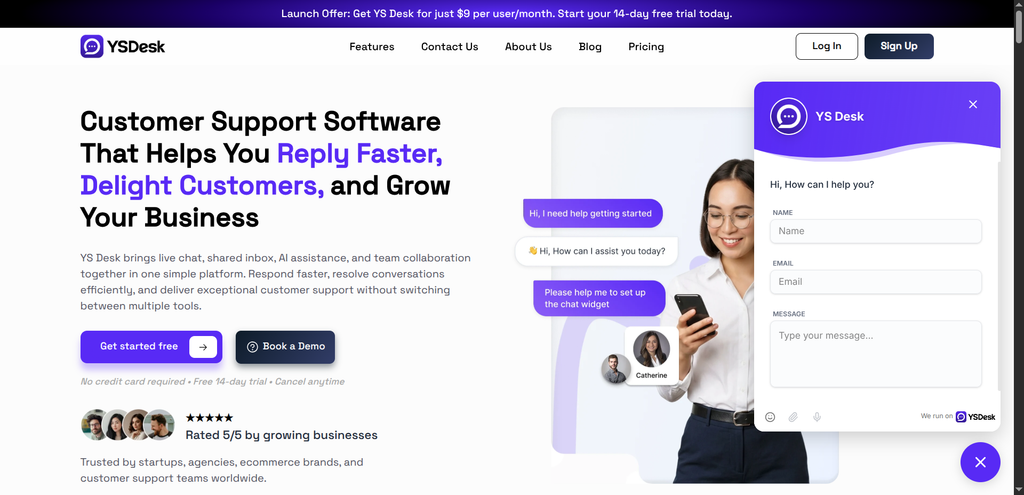
Figure WC-01 — The YS Desk Web Chat interface embedded on a website.
Web Chat Architecture
Web Chat consists of several client and platform layers that work together.
Customer Website
↓
Web Chat SDK
↓
Channel Validation
↓
Visitor Session
↓
Real-Time Connection
↓
YS Desk Inbox
↓
Agent
The Web Chat SDK loads asynchronously so it can initialize without blocking the host page.
Once initialized, the Web Chat client establishes the connection to the configured YS Desk channel and creates the visitor context required for conversation access.
The Web Chat interface is isolated from the host website using its client-side rendering architecture, helping prevent host-page styles from interfering with the Web Chat UI.
Core Capabilities
The current Web Chat implementation provides the following capabilities:
| Capability | Description |
| Async Web Chat SDK | Loads the Web Chat integration asynchronously and queues commands until the SDK is ready. |
| Web Chat Launcher | Provides the entry point visitors use to open Web Chat. |
| Appearance & Branding | Supports configurable colors, gradients, launcher styling, and other visual behavior. |
| Welcome & Offline Messaging | Displays configurable messaging based on the current Web Chat state and agent availability. |
| Visitor Sessions | Maintains visitor session context using signed session data. |
| Guest Identity | Supports visitor identification and guest information such as name and email. |
| Real-Time Messaging | Enables live two-way communication between visitors and agents. |
| Delivery & Seen States | Supports message delivery and seen-state updates. |
| Attachments & Media | Supports supported file and media sharing within conversations. |
| Voice Messages | Supports recording and playback of audio messages. |
| CSAT | Provides customer satisfaction rating collection after supported conversation flows. |
| Events & Callbacks | Exposes client-side Web Chat lifecycle events and SDK callbacks. |
Detailed configuration and implementation instructions are available in the individual Web Chat guides.
How Web Chat Connects to YS Desk
Web Chat Channel
A Web Chat integration is associated with a YS Desk Web Chat channel.
The channel connects the website installation to the appropriate workspace and provides the channel identity used during Web Chat initialization.
The installation also uses a Channel Token to identify the configured Web Chat channel.
Visitor Session
After Web Chat initialization, the visitor receives a Visitor Session that maintains the visitor’s session context.
The session associates the visitor with the relevant workspace and channel and can also contain guest and conversation context.
Real-Time Communication
Web Chat uses real-time communication to support live interaction between visitors and agents.
The visitor sends a message through Web Chat, the conversation is synchronized with the YS Desk workspace, and the agent can respond from the inbox.
Visitor, Guest, and Conversation
These concepts represent different parts of the Web Chat interaction:
Visitor
↓
Visitor Session
↓
Guest Identity (when identified)
↓
Conversation
↓
Agent
Visitor
A Visitor is the person interacting with Web Chat from the website.
A visitor may remain anonymous or become identified during the interaction.
Guest
A Guest represents the visitor within YS Desk when guest identity has been established.
Guest identity can include information such as a visitor’s name or email address.
Conversation
A Conversation contains the messages and interaction history associated with the visitor.
Conversations are surfaced in the YS Desk inbox where agents can review and respond to them.
Web Chat Documentation Map
The Web Chat documentation is organized by task and capability.
Web Chat
├── Overview
├── Installation
├── Quickstart
├── Configuration
├── Launcher
├── Identity & Sessions
├── Messaging & Media
└── SDK Reference
Browser & Platform Requirements
Web Chat runs in the visitor’s browser and depends on normal browser capabilities required by the integration.
JavaScript
JavaScript must be enabled in the visitor’s browser for Web Chat to initialize.
Browser Storage
Web Chat uses browser storage to maintain visitor session information and preserve session continuity.
HTTPS
Production websites should be served over HTTPS so that Web Chat resources and secure real-time connections operate correctly without browser mixed-content restrictions.
Responsive Experience
The Web Chat interface adapts between desktop and mobile layouts to provide an appropriate customer experience across supported screen sizes.
Security & Session Model
Web Chat uses separate security mechanisms for channel identification and visitor sessions.
Channel Token
↓
Channel & Origin Validation
↓
Visitor Session
↓
Visitor / Conversation Access
The Channel Token identifies the Web Chat channel and participates in website-origin validation.
The Visitor Session maintains the authenticated visitor context used for subsequent Web Chat interactions.
For the complete authentication model, see:
[Getting Started → Authentication & Access Tokens]
Configuration Surfaces
Web Chat configuration can be managed through YS Desk workspace settings and, where supported, through SDK runtime configuration.
Common configuration areas include:
- Launcher behavior
- Appearance
- Welcome and offline messaging
- Visitor identity
- Web Chat behavior
- Customer satisfaction
- SDK callbacks and runtime options
Need Help?
Email: support@ysdesk.com
Documentation: https://docs.ysplugins.com/ys-desk