Use this step to invite agents or other team members who will help manage customer conversations in the workspace.
Invite Your Team
After completing the workspace, domain, channel, and Web Chat setup, you can invite team members to join the workspace.
Team invitations are optional during onboarding. You can continue without inviting anyone and add team members later from workspace management.
Choose a Team Member Role
Select the role that should be assigned to the teammate before confirming the invitation.
Agent
Can chat with customers and manage conversations.
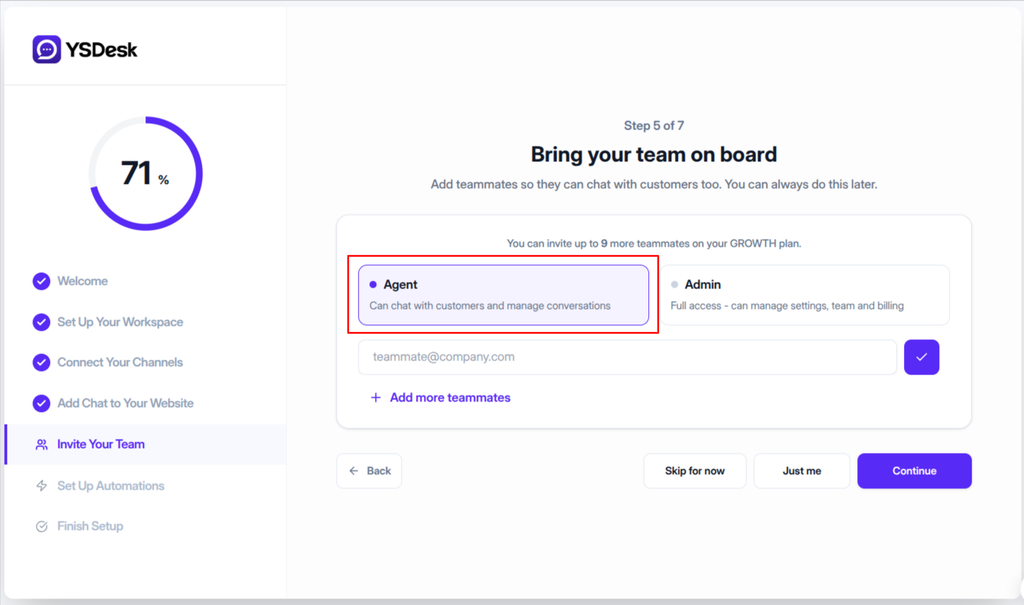
Figure ONB-05-01 — YS Desk onboarding Step 5 with the Agent role selected for a new team member invitation.
Admin
Full access – can manage settings, team and billing.
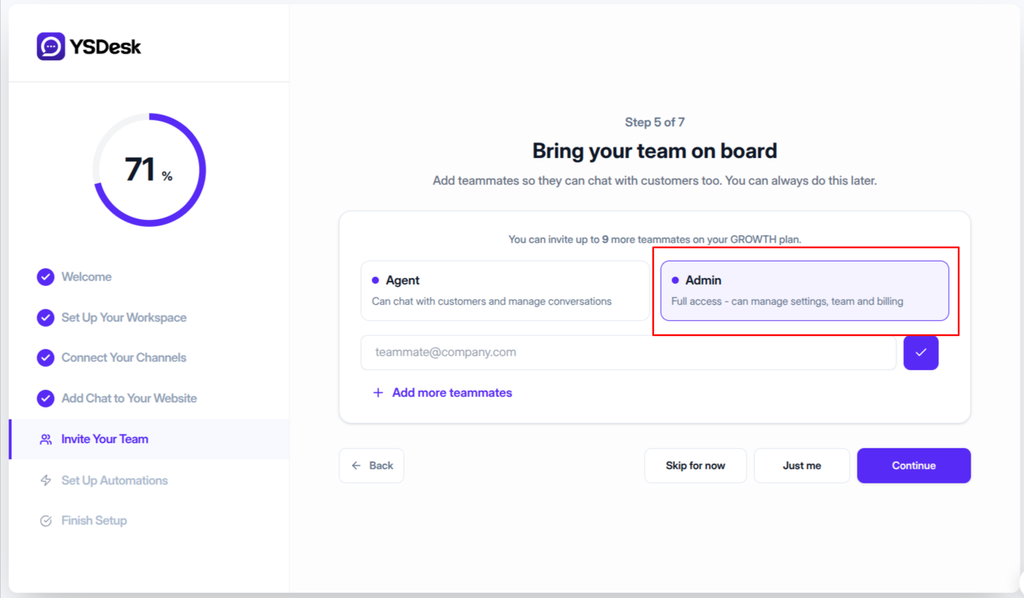
Figure ONB-05-02 — YS Desk onboarding Step 5 with the Admin role selected for a new team member invitation.
Add Teammates
Enter the teammate’s email address in the invitation field.
After entering the email address, select the ✓ button to confirm the teammate.
Once confirmed, the invitation row displays the selected role and provides controls for editing or removing the teammate.
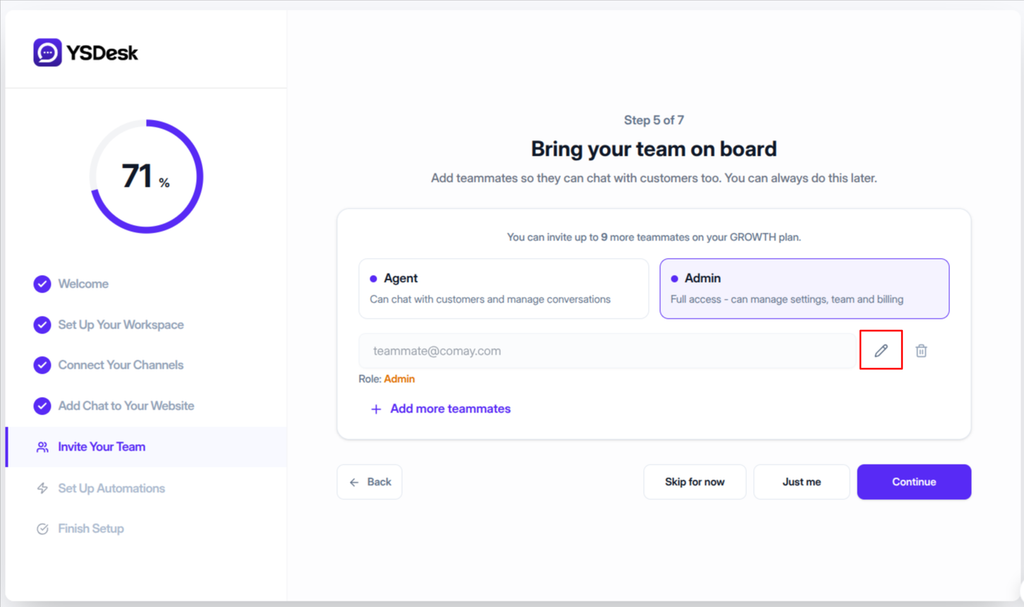
Figure ONB-05-03 — YS Desk onboarding Step 5 showing a confirmed teammate invitation with the assigned Admin role and Edit action.
Edit a Teammate
Select the Pencil icon on a confirmed teammate row to edit the invitation details.
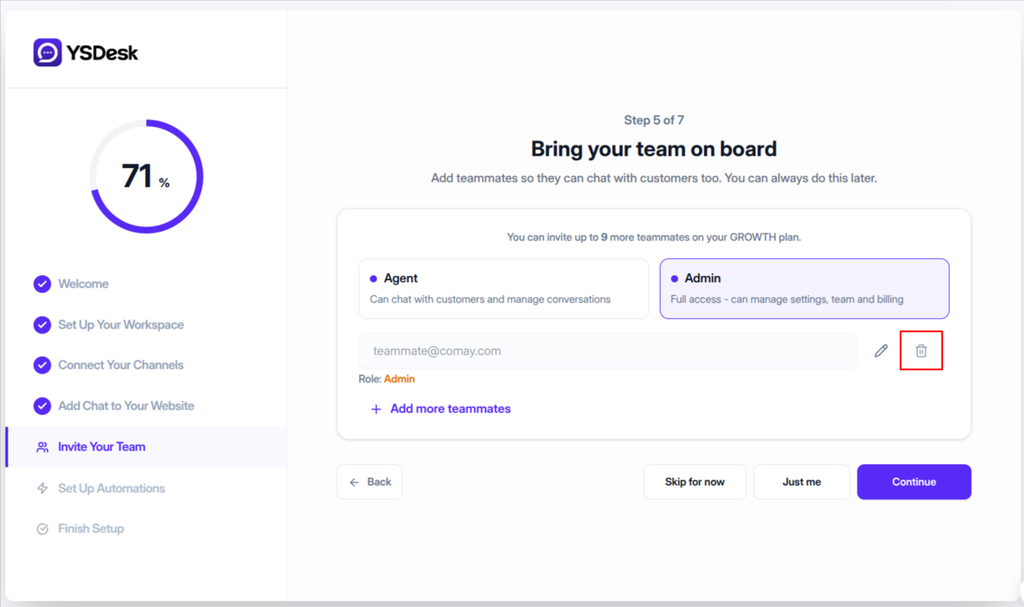
Figure ONB-05-04 — YS Desk onboarding Step 5 showing the Remove action for a confirmed teammate invitation.
Remove a Teammate
Select the Trash icon to remove a confirmed teammate from the invitation list before submitting the invitations.
Add More Teammates
Select + Add more teammates to create another invitation row.
Each row can be configured independently with an email address and role.
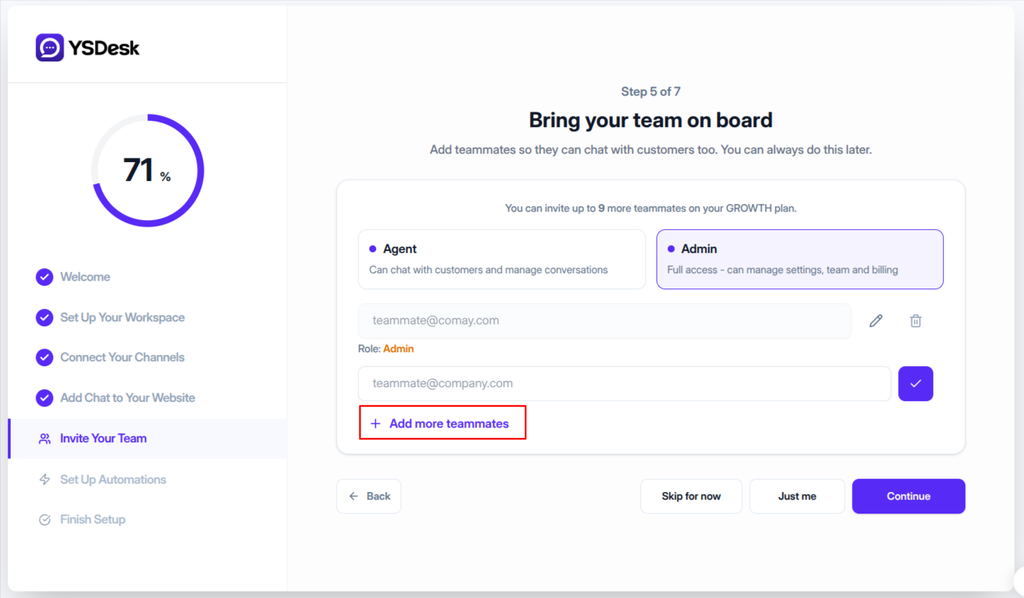
Figure ONB-05-05 — YS Desk onboarding Step 5 showing multiple teammate invitation rows and the Add more teammates action.
Send Invitations
Select Continue after confirming the teammates you want to invite.
YS Desk sends the confirmed invitations individually.
While an invitation is being processed:
- The corresponding teammate row displays a loading indicator.
- The Continue button displays a loading state.
- Other onboarding actions are temporarily disabled while the submission is in progress.
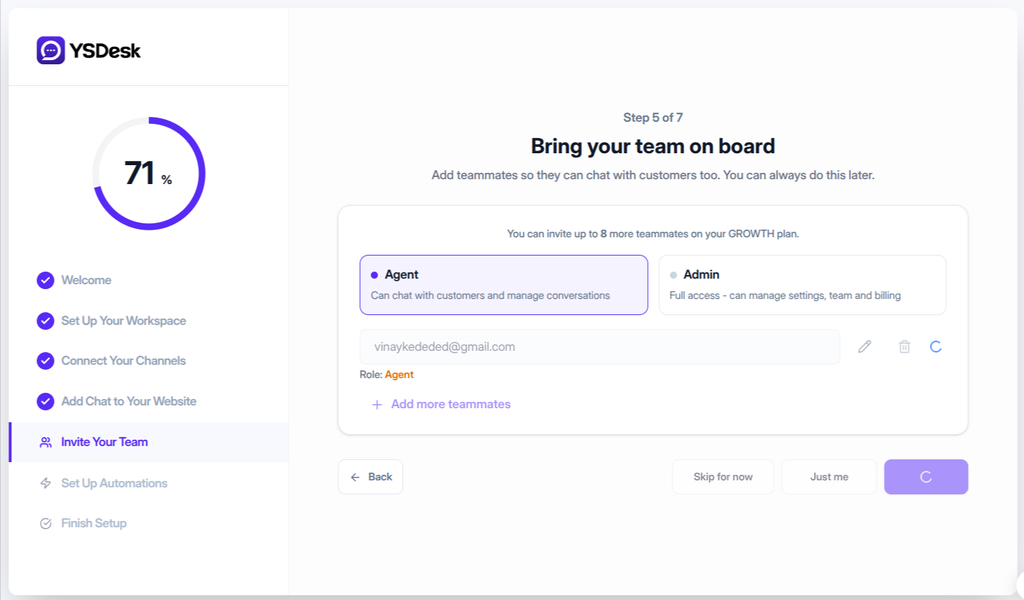
Figure ONB-05-06 — YS Desk onboarding Step 5 showing the invitation submission in progress with loading indicators.
When the invitation is successfully sent, YS Desk displays a confirmation message.
After successful processing, onboarding continues to [Step 6 — Automation Setup].
Skip Team Invitations
You can continue onboarding without inviting teammates.
Just me
Select Just me when you want to continue with a solo workspace.
YS Desk records the onboarding metadata with justMe: true and continues to Step 6.
Skip for now
Select Skip for now to bypass team invitations and continue to Step 6 without setting the justMe onboarding flag.
Invitation Validation
YS Desk validates teammate invitations before sending them.
| Condition | Result |
| Empty or invalid email | Enter a valid email address |
| Duplicate email | This email is already added |
| No confirmed teammates | Please confirm at least one teammate with a valid email before continuing. |
| Duplicate confirmed emails | Remove duplicate email addresses before sending invitations. |
| Exceeds available seats | You can only invite [N] more teammate(s) on your plan. |
| Existing member or active invitation | This email already has an active invitation or is already a member. |
| No remaining seats | Your plan has no remaining seats. Upgrade to invite more teammates. |
| Invitation email failure | Failed to send invitation email. Please try again. |
Plan and Seat Availability
The invitation interface displays the number of remaining teammate seats available on the workspace plan.
For example:
You can invite up to 9 more teammates on your GROWTH plan.
The displayed plan name and remaining seat count depend on the workspace subscription.
On plans where team invitations are unavailable, YS Desk locks the invitation interface and displays an upgrade prompt.
Need Help?
Email: support@ysdesk.com
Documentation: https://docs.ysplugins.com/ys-desk