Configure the basic workspace information and website domain that YS Desk will use during the onboarding process.
This step establishes the workspace identity and the primary website domain associated with the workspace. The information entered here is used as the foundation for the remaining onboarding steps.
Workspace Information
Enter the basic information for your YS Desk workspace.
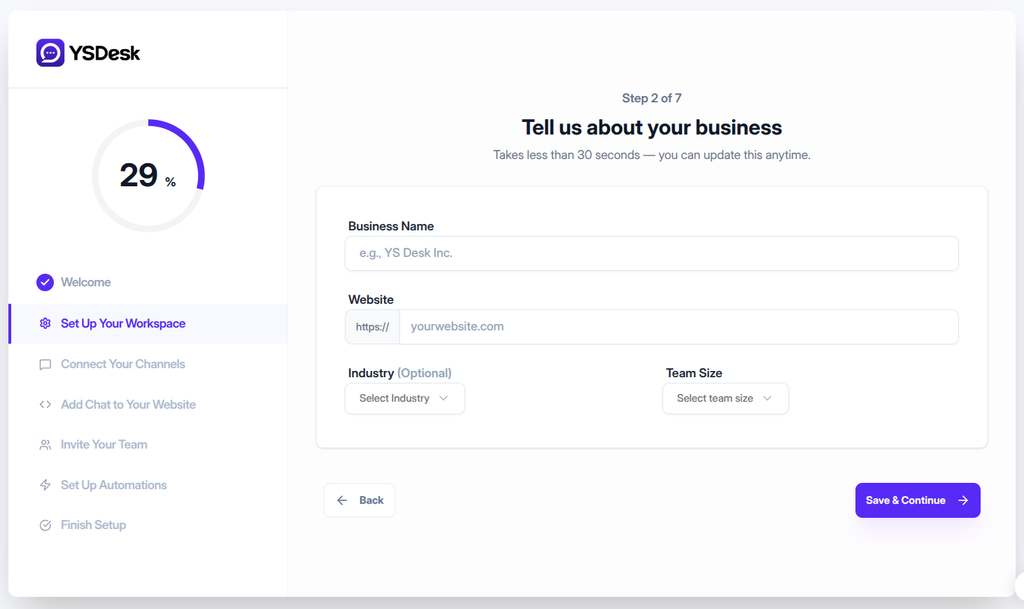
Figure ONB-02-01 — YS Desk onboarding Step 2 showing the workspace profile and website domain configuration form.
Business / Workspace Name
Provide the name of your workspace.
Use a name that clearly identifies the business, team, or support environment.
Website
Enter the primary website domain associated with the workspace.
The website domain is used as part of the Web Chat setup and domain authorization process.
Use the domain where the YS Desk Web Chat experience will be installed.
Industry (optional)
Select the industry that best represents your workspace.
This helps associate the workspace with the appropriate business context during setup.
Team Size
Select the team-size category that best represents your support team.
Provide the current or expected team size used for the workspace
Review Your Information
Before continuing, verify that the workspace information and website domain are correct.
Check:
| Field | What to verify |
| Workspace Name | The correct business or workspace name |
| Industry | The appropriate industry selection |
| Team Size | The appropriate team-size selection |
| Website Domain | The website where Web Chat will be installed |
Continue to Channel Connection
After completing the workspace information and domain configuration, continue to:
Step 3 — Channel Connection
The onboarding wizard saves the current setup and advances to the next stage of the onboarding process.
Expected Result
After completing this step:
- The workspace information is saved.
- The primary website domain is configured.
- The onboarding wizard advances to Step 3 — Channel Connection.
- The configured domain is available for subsequent Web Chat and channel setup.
Need Help?
Email: support@ysdesk.com
Documentation: https://docs.ysplugins.com/ys-desk