Company Profile & Identity contains the information used to identify your workspace and describe the company associated with it.
YS Desk separates these settings into two areas:
- Workspace Identity — workspace name, website domain, and support email.
- Company Details — industry, team size, company name, company website, and company address.
Where to Find Company Profile & Identity
You can manage these settings from the dedicated workspace configuration pages or from the consolidated Workspace Information page.
The dedicated pages provide focused editing experiences for workspace identity and company details. The Workspace Information page brings the related workspace configuration into a single interface.
For day-to-day workspace administration, use:
Settings → Workspace Settings → Workspace Information
Workspace Identity
Workspace identity contains the information used to identify your workspace.
Workspace Name
The Workspace Name is the primary name displayed for your workspace.
The value must contain at least 3 characters. Leading and trailing whitespace is removed when the value is processed.
Workspace names must be unique within the user’s workspace ownership context.
Website Domain
The Website Domain identifies the website associated with the workspace.
YS Desk displays the domain with an https:// prefix and normalizes the value when it is saved.
Multiple domains can be configured when the workspace has access to domain whitelisting. This allows environments such as production and staging to be associated with the same workspace.
Example:
Support Email
The Support Email identifies the email address used for workspace support contact information.
This field is optional and must use a valid email address format when provided.
Managing Workspace Identity
Open the workspace identity settings and select Edit workspace to enable editing.
When editing is enabled:
- The fields become editable.
- The Editing Mode indicator is displayed.
- Cancel and Save Changes controls become available.
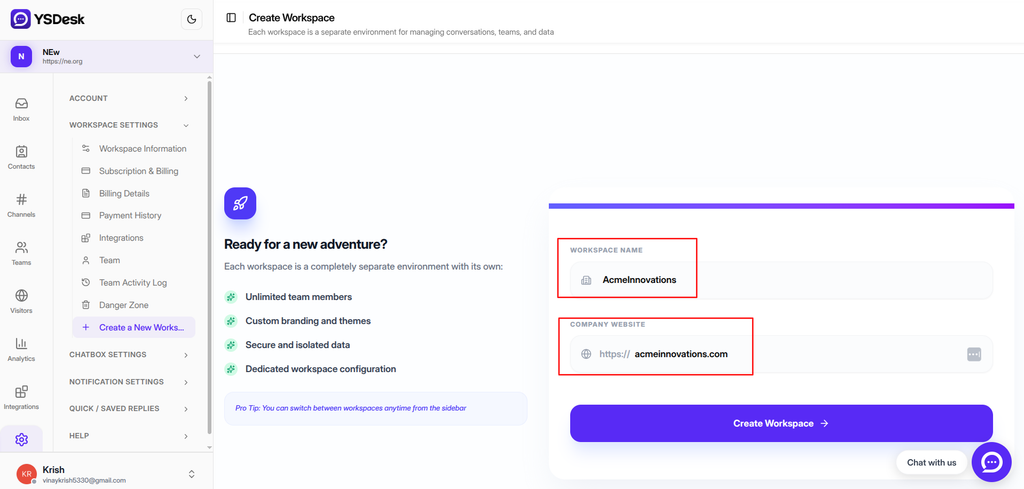
Figure SS-POSTONB-ID-01 — Configuring Workspace Display Name and Website Domain.
Company Details
Company details provide additional information about the business represented by the workspace.
Industry
Select the company’s industry from the available options:
Technology
E-commerce
Healthcare
Education
Finance
Real Estate
Other
This field is optional.
Team Size
Select the approximate size of the team:
Just me
2–10 people
11–50 people
51–100 people
100+ people
This field is optional.
Company Name
Enter the official company name.
This field is optional and can be different from the workspace display name.
Company Website
Enter the company’s website.
Example:
This field is optional.
Company Address
Enter the company’s official address.
This field is optional and supports a multi-line address.
Example:
100 Technology Parkway,
Suite 500,
San Francisco, CA 94105
Managing Company Details
Open the Company Details page and select Edit Details to enable editing.
The editable form contains:
- Industry
- Team Size
- Company Name
- Company Website
- Company Address
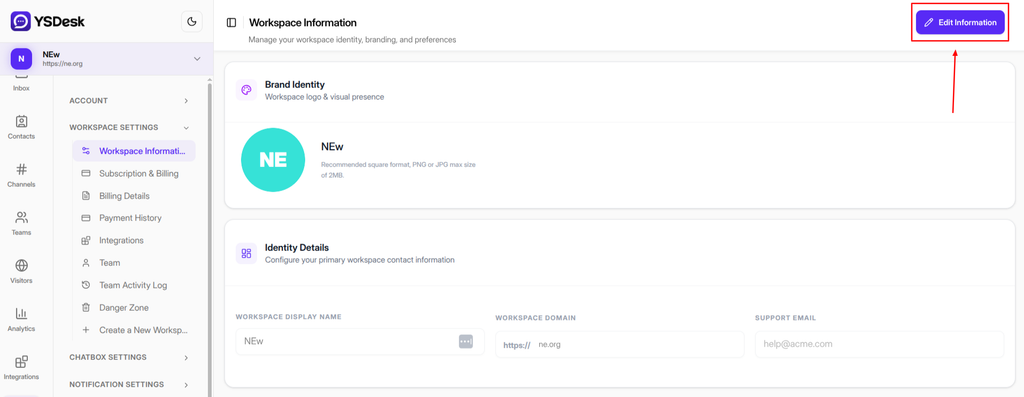
Figure SS-POSTONB-COMP-01 — Editing Workspace Company Profile and Organizational Details in YS Desk.
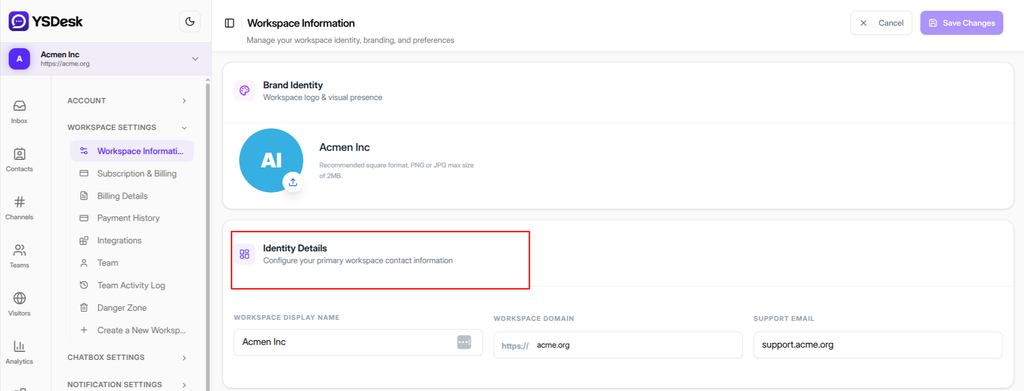
Figure SS-POSTONB-COMP-01 — Workspace Information showing Identity Details, including Workspace Display Name, Workspace Domain, and Support Email.
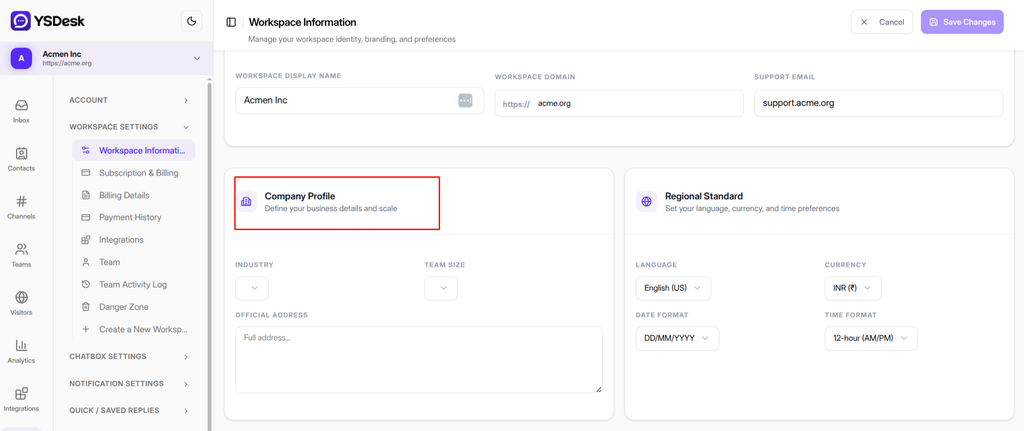
Figure SS-POSTONB-COMP-02 — Workspace Information showing Company Profile fields, including Industry, Team Size, and Official Address, alongside regional settings.
Use representative mock information in the above image rather than production company information.
Saving Changes
After updating the required information, select Save Changes.
YS Desk validates the form before saving. Invalid values remain in the form and the relevant validation message is displayed.
A confirmation dialog is shown before the changes are saved.
When the save operation is in progress, the save control displays a loading state.
After a successful save:
- The updated information is synchronized with the workspace.
- A success notification is displayed.
- Editing mode closes.
- The updated values are shown as the current workspace information.
Canceling Changes
Select Cancel to leave editing mode.
When no fields have been changed, editing mode closes immediately.
When there are unsaved changes, YS Desk displays a Discard Changes confirmation dialog.
Select Keep Editing to return to the form without losing changes.
Select Discard Changes to restore the previously saved values and exit editing mode.
Unsaved Changes Protection
YS Desk protects unsaved Company Profile & Identity changes from accidental navigation.
When changes are pending:
- In-app navigation is intercepted and a discard confirmation is displayed.
- Browser navigation, refresh, or tab close triggers the browser’s native unsaved-changes warning.
Validation
The following workspace identity rules are enforced:
| Field | Validation |
| Workspace Name | Required; minimum 3 characters; must be unique within the user’s workspaces |
| Website Domain | Required; must match the supported domain format |
| Support Email | Optional; must use a valid email format |
Company Details fields are optional. Industry and Team Size are restricted to the predefined options provided by YS Desk.
Access Requirements
Company Profile & Identity settings require the OWNER role.
Users without the required workspace ownership privileges cannot edit these settings.
Workspace Identity and Company Details
| Workspace Identity | Company Details |
| Workspace Name | Industry |
| Website Domain | Team Size |
| Support Email | Company Name |
| Company Website | |
| Company Address |
The two areas can be managed separately through their dedicated pages and are also represented together in Workspace Information.
Workspace Information
The unified Workspace Information page provides a consolidated view of workspace configuration.
It contains:
- Brand Identity
- Identity Details
- Company Profile
The dedicated pages and the unified Workspace Information interface represent the same workspace configuration, so changes made through one interface are reflected in the other.
Expected Result
After completing the update:
- The workspace or company information is saved successfully.
- The updated values are displayed in Workspace Information.
- Editing mode closes.
- A success notification confirms the update.
Need Help?
Email: support@ysdesk.com
Documentation: https://docs.ysplugins.com/ys-desk