YS Desk Web Chat is installed by adding the YS Desk SDK loader to yosur website and initializing it with the Channel Token for your Web Chat channel. The SDK loads asynchronously, validates the channel and website origin, and then renders the Web Chat interface on the page.
Prerequisites
Before installing Web Chat, make sure you have:
- An active YS Desk Workspace.
- An active Web Chat (WEB) channel.
- The Channel Token for that channel.
- The target website configured as an authorized website domain.
- Access to the website’s HTML, layout template, application entry point, or tag-management configuration so that you can add the installation script.
Get Your Channel Token
The Channel Token identifies the Web Chat channel that your website connects to.
In the YS Desk dashboard:
- Open Channels.
- Select the Web Chat channel.
- Open Integration Code.
- Copy the Channel Token or the generated installation snippet.
The same installation code is also available during Workspace Onboarding → Step 4 — Web Chat Installation.
The Channel Token is designed to be included in client-side website code. It identifies the Web Chat channel but does not provide access to workspace administration or private workspace data.
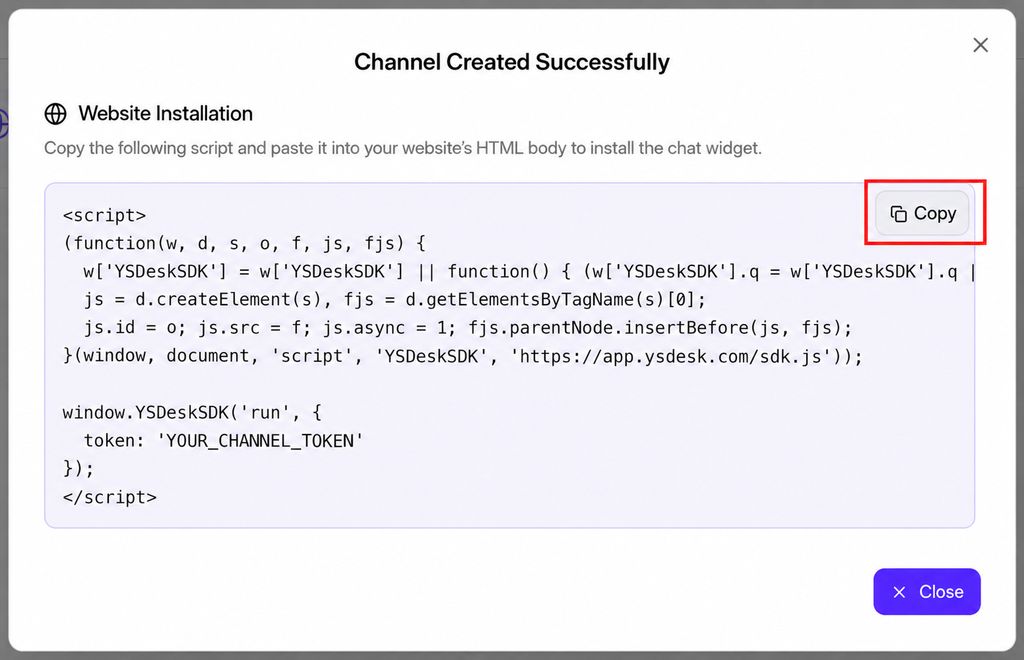
Figure WC-02 — Copying the Web Chat Channel Token and installation snippet from the YS Desk dashboard.
Configure Authorized Website Domains
YS Desk validates the website from which the Web Chat channel is initialized.
Go to:
Settings → Workspace Settings → Workspace Information
Configure the website domain used by your production Web Chat installation.
The current domain matching behavior:
- Protocol prefixes such as http:// and https:// are ignored.
- www. is normalized.
- URL paths are ignored.
- Port numbers are ignored.
- Matching is case-insensitive.
- Multiple website hostnames can be configured.
For example, these values are normalized for hostname comparison:
http://example.com:3000/support
example.com
The production hostname should be present in the workspace’s website configuration before installing the widget..
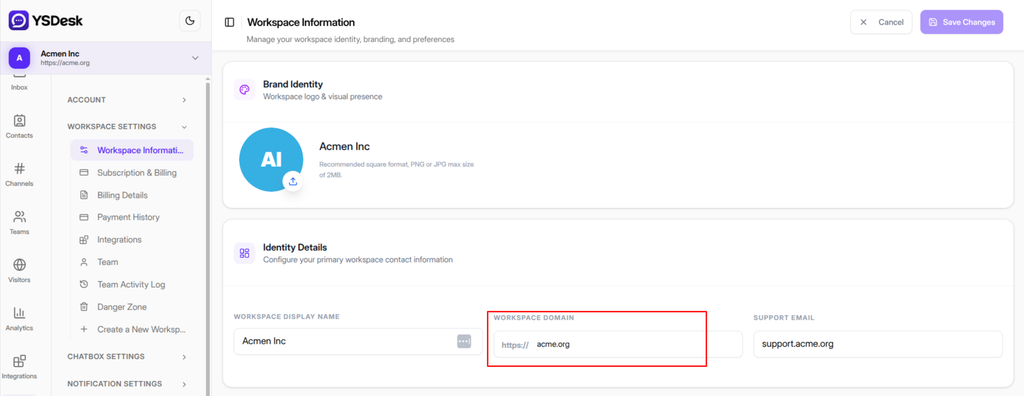
Figure WC-03 — Configuring authorized website domains in Workspace Settings.
Unauthorized Website Domains
When a website has not been authorized for the channel, Web Chat initialization is stopped and the SDK reports that the domain is not authorized.
Add the website hostname to the workspace’s authorized website domains and reload the page.
Add the Installation Snippet
The YS Desk dashboard generates the installation snippet for the Web Chat channel.
Standard HTML Installation
Add the following snippet to the website:
<!– YS Desk Web Chat Installation –>
<script>
(function(w, d, s, o, f, js, fjs) {
w[‘YSDeskSDK’] = w[‘YSDeskSDK’] || function() { (w[‘YSDeskSDK’].q = w[‘YSDeskSDK’].q || []).push(arguments) };
js = d.createElement(s), fjs = d.getElementsByTagName(s)[0];
js.id = o; js.src = f; js.async = 1; fjs.parentNode.insertBefore(js, fjs);
}(window, document, ‘script’, ‘YSDeskSDK’, ‘https://app.ysdesk.com/sdk.js’));
window.YSDeskSDK(‘run’, {
token: ‘YOUR_CHANNEL_TOKEN’
});
</script>
The loader uses an asynchronous script element, so loading the SDK does not block normal page parsing.
Script Placement
The installation snippet can be placed:
- In the <head> of the page.
- Immediately before the closing </body> tag.
- In the global layout/template used by the website.
- In the application entry point of a single-page application.
The SDK’s command queue allows the run command to be issued before the external SDK script has finished loading. The command is processed when the SDK becomes available.
Single-Page Applications
For React, Next.js, Vite, Vue, and other single-page applications, load the SDK once from the application’s root HTML or root layout.
Initialize the SDK once for the application using:
window.YSDeskSDK(‘run’, {
token: ‘YOUR_CHANNEL_TOKEN’
});
Avoid calling run repeatedly during ordinary client-side route changes.
The Web Chat integration is attached to the page rather than to an individual application route, so route navigation does not require reinstalling the SDK.
For framework-specific application structure, keep framework integration details separate from the basic installation mechanism.
How Installation Works
The installation sequence is:
YS Desk Workspace
↓
Active Web Chat Channel
↓
Copy Channel Token
↓
Configure Authorized Website Domain
↓
Add SDK Installation Snippet
↓
Browser Loads YS Desk SDK
↓
Initialize YSDeskSDK
↓
Channel & Website Validation
↓
Web Chat Widget Mounts
↓
Launcher Becomes Available
After successful validation, the SDK creates the Web Chat container and renders the widget using an isolated Shadow DOM and iframe-based application container.
The installation page intentionally does not cover the Web Chat message transport or real-time event protocol. Those topics are documented separately.
Verify the Installation
After adding the snippet:
- Open the target website in a supported modern browser.
- Confirm that the Web Chat launcher appears.
- Open the launcher and verify that the Web Chat interface renders.
- Send a test message.
- Confirm that the resulting conversation is available in the YS Desk inbox.
For integration troubleshooting, open your browser’s Developer Tools and inspect the console for SDK messages prefixed with:
[YSDeskSDK]
A successful initialization includes an SDK-ready state.
Troubleshooting
Invalid Channel Token
Symptom: The SDK reports that the Channel Token is invalid or uninitialized.
Cause: The value supplied to token does not correspond to an existing Web Chat channel.
Resolution: Copy the current Channel Token from Channels → Web Chat → Integration Code and replace the value in the installation snippet.
Missing Token
Symptom: The SDK reports a missing or invalid website token.
Cause: The run command was called without a valid token value.
Resolution:
window.YSDeskSDK(‘run’, {
token: ‘YOUR_CHANNEL_TOKEN’
});
Unauthorized Domain
Symptom: Web Chat does not initialize and the SDK reports that the website domain is not authorized.
Cause: The current website hostname is not authorized for the workspace/channel.
Resolution: Add the production hostname under:
Settings → Workspace Settings → Workspace Information → Workspace Domain
Then reload the website.
Paused or Archived Channel
Symptom: The SDK reports that the channel cannot currently be used.
Cause: The Web Chat channel is not in an active state.
Resolution: Open Channels in YS Desk and restore or reactivate the Web Chat channel as appropriate.
Repeated Initialization
Symptom: The SDK reports that it has already been initialized.
Cause: The application called YSDeskSDK(‘run’, …) more than once for the same page lifecycle.
Resolution: Initialize Web Chat once from the application’s root integration point and avoid re-running initialization during normal SPA route changes.
WordPress and Shopify
The YS Desk onboarding interface currently lists native WordPress and Shopify integrations as Coming Soon.
Manual JavaScript installation remains possible where the platform allows custom website scripts.
For WordPress, add the installation snippet through the site’s supported custom-script or theme configuration.
For Shopify, add the snippet through the store’s supported theme customization mechanism.
Native WordPress and Shopify installation workflows should not be treated as official plugin/app integrations until those integrations are released.
Installation Security
The Channel Token is intended for browser-side installation and therefore appears in the website’s client-side code.
Do not place private credentials, backend secrets, signing keys, or workspace authentication tokens in the Web Chat installation snippet.
The Web Chat installation flow additionally validates the requesting website’s origin before allowing the channel to initialize.
Need Help?
Email: support@ysdesk.com
Documentation: https://docs.ysplugins.com/ys-desk