Connect the communication channel that will be used to receive customer interactions in YS Desk.
This step configures the channel required for the next stage of onboarding. For the current onboarding flow, the Web channel is used to connect the workspace with its customer-facing Web Chat experience.
Connect Your Channel
The onboarding wizard displays the available channel options and allows you to select the channel to configure for the workspace.
Choose your support channels
Select where you’d like to receive customer messages. More channels coming soon.
For the current Live Chat onboarding flow, select the available Website channel.
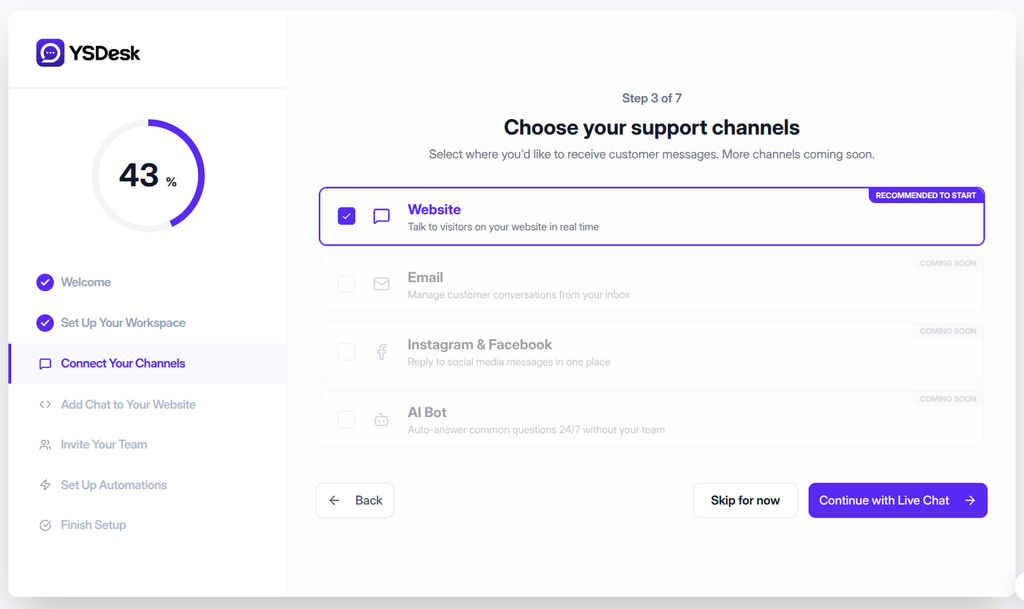
Figure ONB-03-01 — YS Desk onboarding Step 3 showing the support channels selection screen with the Website channel selected.
Available Channels
YS Desk currently displays the following channel options during onboarding.
Website
Recommended to start
Talk to visitors on your website in real time.
The Website channel is the currently available option for the Live Chat experience and is selected by default.
Coming soon
Manage customer conversations from your inbox.
Email is currently unavailable during onboarding.
Instagram & Facebook
Coming soon
Reply to social media messages in one place.
Instagram & Facebook is currently unavailable during onboarding.
AI Bot
Coming soon
Auto-answer common questions 24/7 without your team.
AI Bot is currently unavailable during onboarding.
Continue to Web Chat Installation
After selecting the Website channel, select:
Continue with Live Chat →
The onboarding wizard saves the channel onboarding progress and advances to Step 4 — Web Chat Installation.
Skip for now
Select Skip for now to continue to the next onboarding step without completing channel selection.
Expected Result
After completing this step:
- The Web channel is selected for the workspace.
- The channel configuration is saved.
- The onboarding wizard advances to Step 4 — Web Chat Installation.
- The Web Chat installation process becomes available.
Need Help?
Email: support@ysdesk.com
Documentation: https://docs.ysplugins.com/ys-desk