Web Chat provides a real-time messaging experience between Visitors and Agents, with support for text messages, file attachments, audio uploads, voice messages, and Customer Satisfaction (CSAT) feedback.
The message composer supports text, emoji, attachments, and voice recording. Message and media behavior depends on the current Conversation state and the capabilities enabled for the Web Chat channel.
Messaging
Message Composition
Visitors can compose messages directly in the Web Chat composer.
The composer supports:
- Text messages
- Emoji
- Multiline messages
- Message replies
Press Enter to send a message. Press Shift + Enter to insert a new line without sending.
The message field supports a maximum of 5,000 characters. Messages containing only whitespace cannot be submitted.
Sending Messages
When a message is sent, Web Chat displays the message immediately while delivery continues in the background.
This provides an immediate response in the interface while Web Chat confirms delivery with the messaging service.
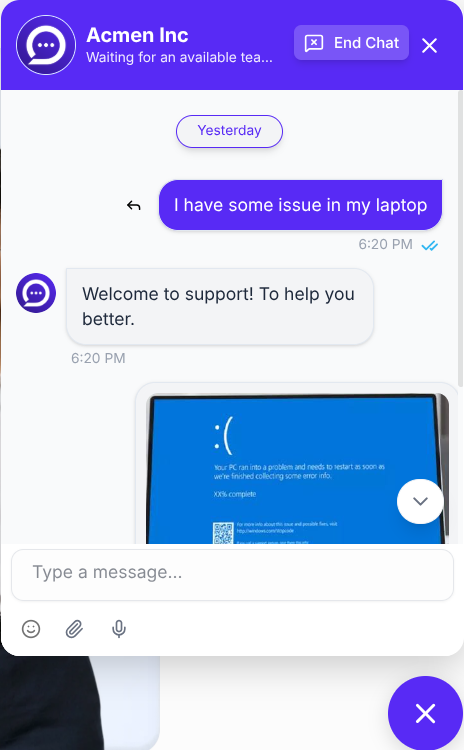
Figure WC-19 — The Web Chat messaging interface showing conversation history, delivery status indicators, and composer controls.
Message Delivery States
Outgoing messages can display the following delivery states:
Pending — The message is being sent.
Sent — The message has been accepted for delivery.
Delivered — The message has been delivered to the conversation.
Seen — The message has been viewed.
Failed — The message could not be delivered. A Retry action is available to send the message again.
The Web Chat interface uses visual status indicators to distinguish these states: a clock icon for Pending, a single gray checkmark (✓) for Sent, double gray checkmarks (✓✓) for Delivered, double blue checkmarks (✓✓) for Seen, and a red alert icon with an interactive Retry action for Failed.
Message Replies
Visitors can reply to an existing message.
On supported devices, the reply action can be accessed from the message controls or by swiping a message to reveal the reply action.
When a message is selected for reply, a preview appears above the composer. The reply can be cancelled before sending.
The resulting message remains associated with the message being replied to.
Attachments and Media
Attachment Availability
The attachment and voice controls are locked until the Visitor sends the first message.
This ensures that a Conversation is established before media is uploaded.
After the first message is sent, the attachment and voice controls become available.
Supported Attachments
Web Chat supports the following attachment types.
Images
- .jpg
- .jpeg
- .png
Documents and Files
- .doc
- .docx
- .xls
- .xlsx
- .ppt
- .pptx
- .txt
- .csv
Audio Files
- .mp3
- .wav
- .ogg
- .m4a
- .flac
- .aac
Each uploaded file is limited to 2 MB.
Video files are not supported by the Visitor Web Chat attachment picker.
Uploading Attachments
After an attachment is selected, Web Chat validates the file before uploading it.
Images can be previewed directly in the conversation. Documents display their filename and file information. Supported audio files are presented with an inline audio player.
The interface can display the selected media before the upload has finished, allowing the attachment to appear immediately while the upload is completed in the background.
Images
Supported image attachments are displayed as inline thumbnails.
Visitors can select an image to open a larger media preview. The preview provides actions for viewing or downloading the media.
Documents and Files
Supported documents and files are displayed with their filename, file type information, and formatted file size.
Visitors can open or download the file from the message.
Audio Files
Uploaded audio files are displayed with an inline audio player.
The player provides playback controls, progress tracking, and duration information.
Voice Messages
Recording a Voice Message
Web Chat supports visitor-side voice message recording using the device microphone.
The recording interface provides:
- Recording indicator
- Live waveform
- Elapsed recording time
- Discard control
- Send control
A voice recording can be up to 60 seconds long. Recording stops automatically when the limit is reached.
The browser may request microphone permission before recording begins.
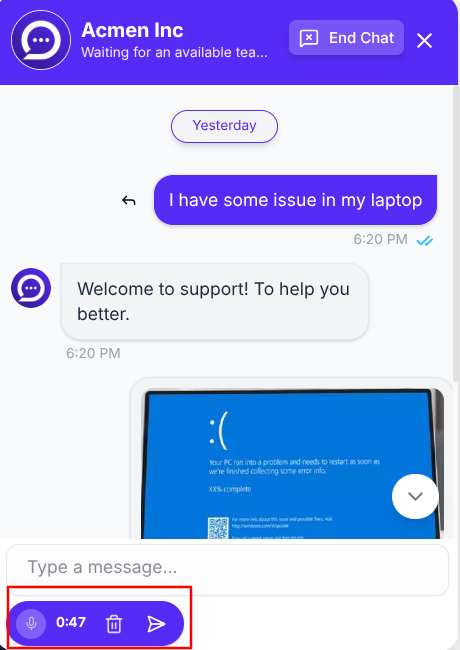
Figure WC-20 — Web Chat audio recording interface with live waveform, recording timer, discard, and send controls.
Sending Voice Messages
After recording, the Visitor can discard the recording or send it as a voice message.
Sent voice messages appear in the Conversation with an audio player so the recording can be played back.
Conversation Status and Messaging
Messaging behavior depends on the current Conversation status.
OPEN
An OPEN Conversation supports normal two-way messaging between the Visitor and Agent.
RESOLVED
When a Conversation is RESOLVED, Web Chat prevents the Visitor from continuing to send messages in that thread.
The Visitor is shown a resolution state with a Start New Conversation action.
Selecting Start New Conversation resets the current conversation context and allows the Visitor to begin a new Conversation.
Customer Satisfaction (CSAT)
CSAT Overview
Web Chat can display a Customer Satisfaction survey after a Conversation reaches its completion flow.
The survey allows the Visitor to rate their experience and optionally provide written feedback.
CSAT availability depends on the Web Chat channel configuration and subscription plan.
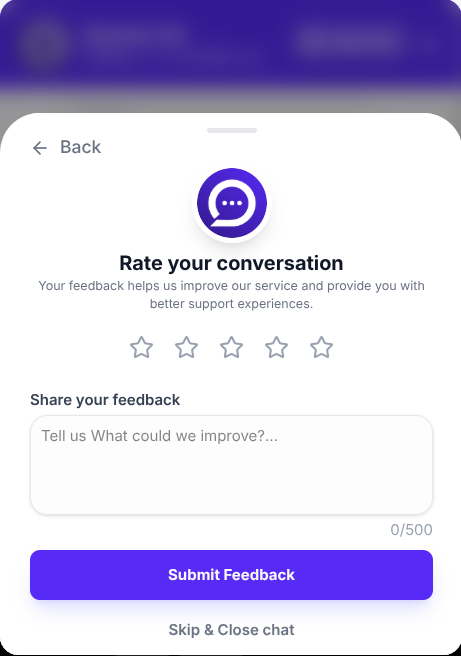
Figure WC-21 — Web Chat CSAT rating survey with 1–5 star satisfaction scale, feedback input, and skip option.
Rating Scale
The CSAT survey uses a 1–5 star rating scale.
The rating labels are:
1 Star — Terrible – Very disappointed
2 Stars — Bad – Needs improvement
3 Stars — Fair – Help us improve our service
4 Stars — Good – I’m satisfied
5 Stars — Excellent – Loved the experience
Written Feedback
Visitors can optionally provide additional written feedback.
The feedback field supports a maximum of 500 characters.
A CSAT response can be submitted with a rating or written feedback. When neither is provided, Web Chat prompts the Visitor to provide at least one form of feedback.
Skip CSAT
Visitors can select Skip & Close chat to dismiss the CSAT survey without submitting a rating or written feedback.
CSAT Submission
After successful submission, Web Chat displays a confirmation state indicating that the feedback has been submitted.
The completed CSAT flow clears the current local conversation context so the Visitor can continue with a new Conversation when appropriate.
CSAT Availability
CSAT availability depends on the channel’s configuration and subscription plan.
When CSAT is unavailable because the feature is disabled, Web Chat indicates the disabled state. On plans where CSAT requires an upgrade, the survey is presented with the corresponding plan restriction.
For configuration and availability settings, see [Web Chat → Configuration].
Messaging and Media Lifecycle
The typical Web Chat messaging flow is:
Compose → Validate → Send → Deliver → Seen
For attachments:
Select File → Validate → Upload → Send → Display in Conversation
For voice messages:
Record → Review → Send → Play in Conversation
For CSAT:
Conversation Completion → Rate → Add Feedback → Submit or Skip
For message, media, and CSAT API operations, see [REST API → Messages], [REST API → Media], and [REST API → CSAT].
For formal Conversation and Message object definitions, see [Reference → Objects → Conversation & Message Objects].
For Agent-side messaging and media workflows, see [Guides → Composing & Sending Messages] and [Guides → Media & Voice Notes].
For CSAT workflow and operational guidance, see [Guides → CSAT].
Need Help?
Email: support@ysdesk.com
Documentation: https://docs.ysplugins.com/ys-desk