A Conversation moves through a simple operational lifecycle. Understanding the lifecycle helps Agents know when a Conversation is active, when it has been resolved, and when new customer activity reopens it.
Conversation Statuses
YS Desk uses these active operational statuses:
OPEN
RESOLVED
Open Conversations
An OPEN Conversation is active and can continue to receive and send messages.
Resolve a Conversation
When the issue has been completed, an Agent can select Resolve Conversation from the Conversation header or action dropdown.
A confirmation dialog titled Close Conversation is displayed before the action completes.
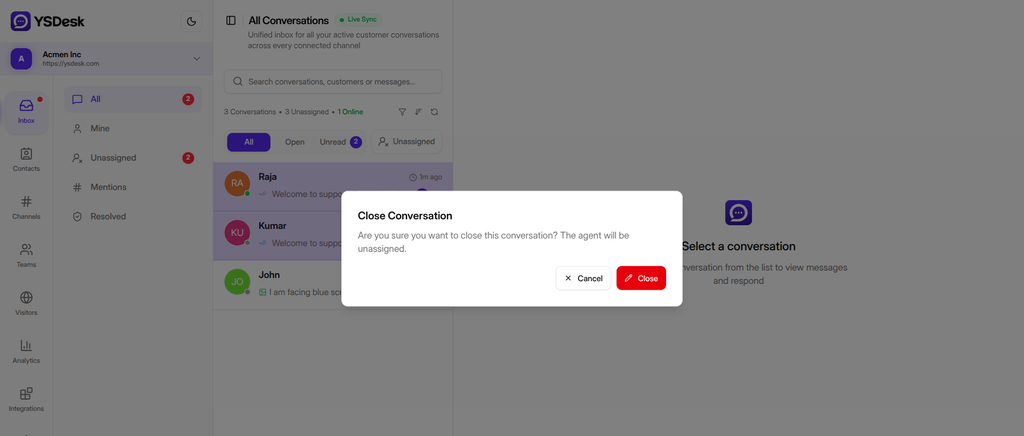
Figure G-02 Resolve Conversation action and confirmation dialog
Conversation History
Past Conversation history can be accessed from the Conversation details area.
The history view can show previous Conversations associated with the same Visitor, including identifying information, recent message context, and timestamps.
Transcripts
Where transcript actions are available, Agents can:
- Download Transcript: Saves the Conversation transcript as a text file.
- Send Transcript: Delivers the Conversation transcript by email. This requires the Starter plan or above and the appropriate transcript-send permission.
Lifecycle Diagram
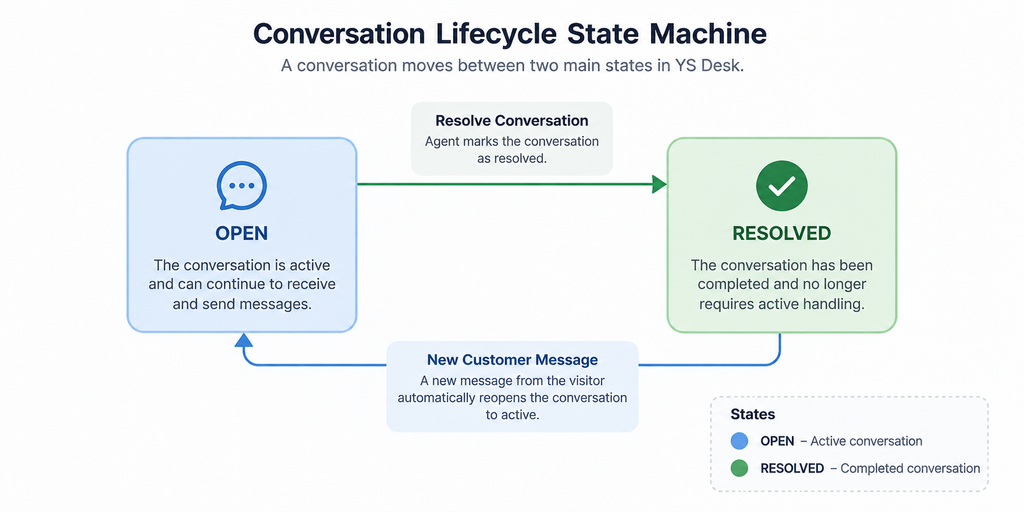
Figure G-03 Conversation Lifecycle State Machine.
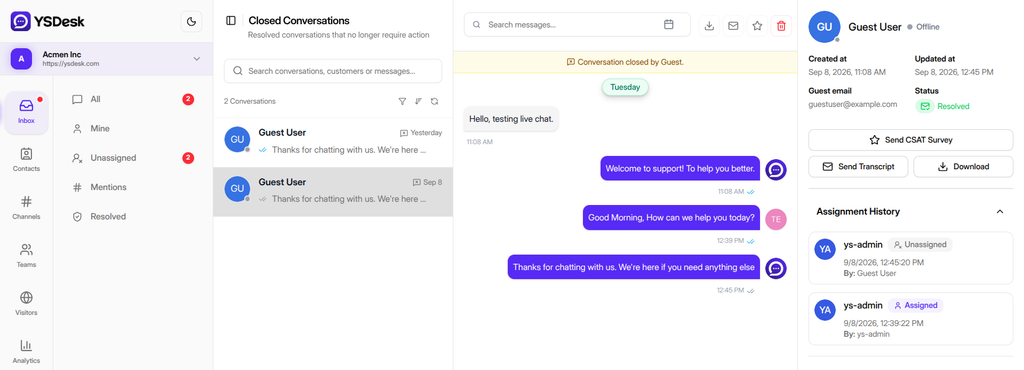
Figure G-04 Active/resolved Conversation showing lifecycle controls and the history panel.
Need Help?
Email: support@ysdesk.com
Documentation: https://docs.ysplugins.com/ys-desk