Notifications help Team Members stay informed about unread Conversations and other Workspace activity.
Open Notification Settings
Navigate to:
Settings → Notification Settings → Email Notifications
Configure Notification Frequency
The notification settings support five selectable alert/digest intervals:
Immediate: Sent as soon as an event occurs
Every 6 Hours: Batched every 6 hours
Every 12 Hours: Batched twice daily
Every 24 Hours: Daily digest
None: Email notifications disabled
Choose the frequency that matches how quickly notification emails should be delivered.
Unread Conversation Alerts
Notification settings can include automated email alerts for unread or unassigned Conversations.
Use the relevant toggle to enable or disable these alerts.
Select Recipients
Conversation Notification Recipients: Choose which Workspace Admins or Agents receive conversation activity alerts.
Billing & Subscription Alert Recipients: The Workspace Owner always receives billing notifications. Additional Workspace Admins can be selected to receive billing-related alerts.
Schedule Delivery
Where schedule controls are available, configure:
- Delivery start time
- Delivery timezone
For example:
09:00
Asia/Kolkata
UTC
America/New_York
Reset Notification Settings
Select Restore Defaults to restore all notification settings to their default system values.
A confirmation dialog titled Restore Default Settings is displayed before the reset is applied.
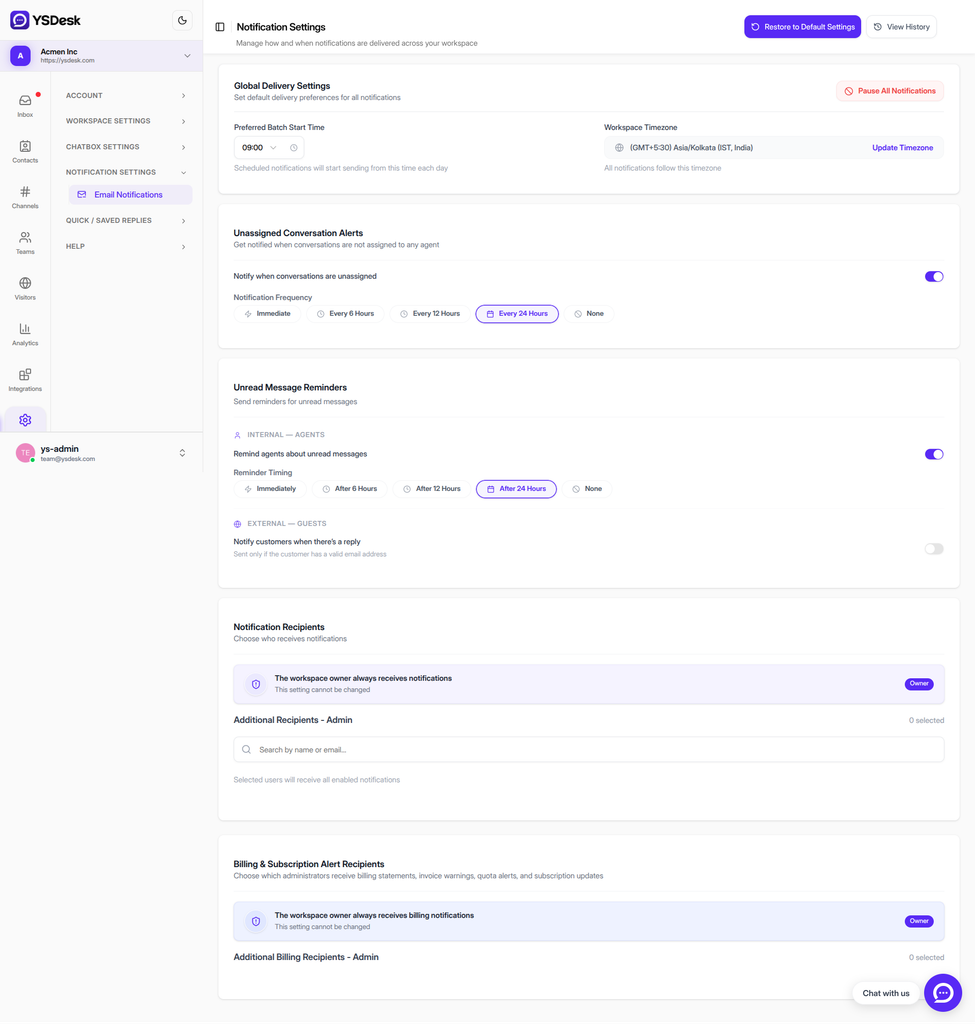
Figure G-20 Email Notifications settings panel.
Need Help?
Email: support@ysdesk.com
Documentation: https://docs.ysplugins.com/ys-desk