Team management allows Workspace owners and administrators to invite Team Members, assign roles, and manage access.
View Team Members
Open:
Team → Team Members
You can also access Team settings through Settings → Workspace Settings → Team.
The member list can show:
- Team Member email
- Assigned role
- Current status
- Available management actions
Invite a Team Member
To invite a new Team Member:
- Select Invite Member from the Team Members view.
- Enter the member’s email address.
- Select Admin or Agent.
- Select a Permission Template when applicable.
- Send the invitation.
Manage Pending Invitations
Open:
Teams → Pending Invitations
From the pending invitation list, you can manage invitations that have not yet been accepted.
Available actions include:
- Resend invitation
- Revoke invitation
Manage Existing Members
Open the member management interface for an existing Team Member.
Depending on your access, you may be able to:
- Change their role
- Block or unblock access
- Remove the member
Seat Limits
The current plan configuration identified by the audit includes:
| Plan | Included seats |
| Free | 1 |
| Starter | 3 |
| Growth | 10 |
Additional invitations may require an upgrade depending on current seat usage and plan limits.
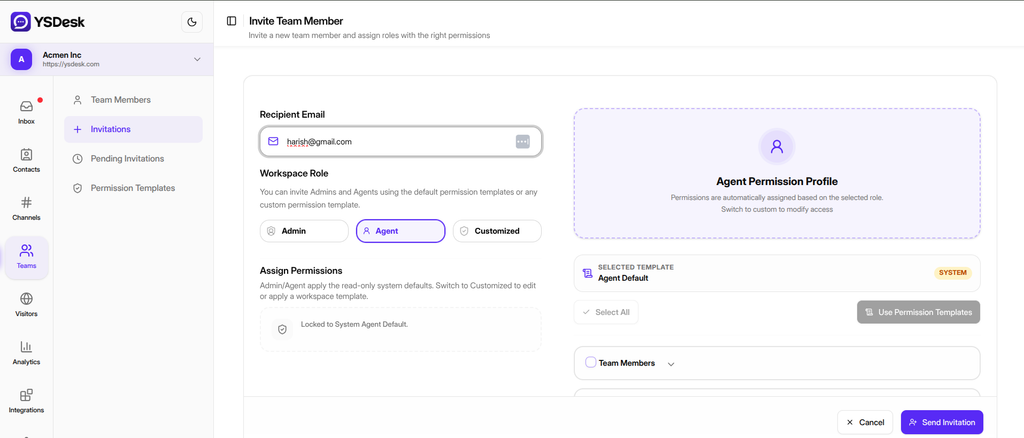
Figure G-14 Team Members table and Invite Member dialog.
Need Help?
Email: support@ysdesk.com
Documentation: https://docs.ysplugins.com/ys-desk