Assignment determines which Agent is responsible for an active Conversation.
YS Desk supports manual assignment, reassignment, unassignment, and automatic assignment when an Agent responds to an unassigned Conversation.
Assign a Conversation
Open the Conversation and select Assign or Reassign.
The Agent assignment dialog displays available team members and their online status.
Select the Agent who should handle the Conversation and confirm the assignment.
Reassign a Conversation
Use Reassign when the Conversation needs to move to another Agent.
Select the new Agent from the assignment dialog.
Unassign a Conversation
Use Unassign Agent from the Conversation actions when the current Agent should no longer own the Conversation.
After unassignment, the Conversation returns to the Unassigned queue.
Automatic Assignment on Reply
When an Agent sends a public reply to an unassigned Conversation, YS Desk can automatically assign the Conversation to that replying Agent.
This removes the need for a separate manual assignment step in that workflow.
Note: Sending an Internal Note in an unassigned Conversation does not trigger automatic assignment. The Conversation remains in the Unassigned queue until an Agent sends a public message or manually assigns it.
Plan Availability
Manual team assignment requires a paid team-capable plan. The audit identifies Starter and Growth as the relevant plans for team assignment, while the Free plan is limited to a single-seat workflow.
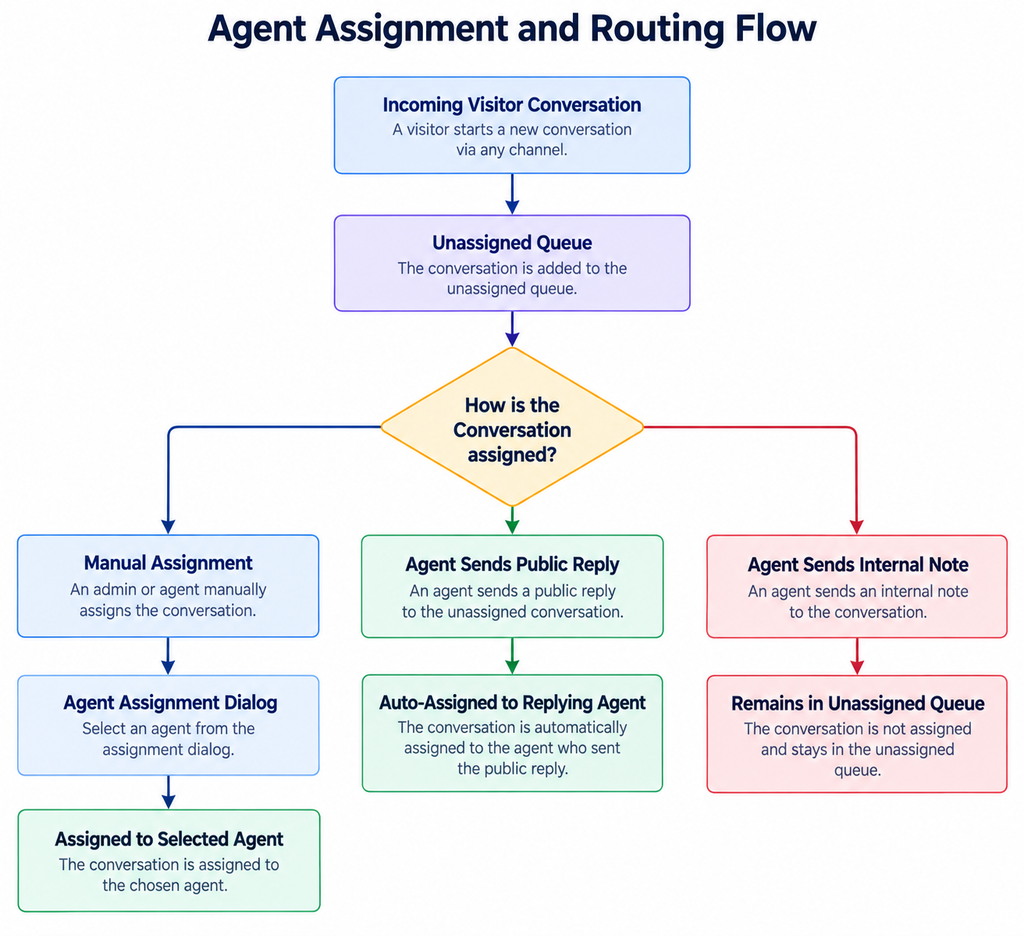
Figure G-05 Agent Assignment and Routing Flow
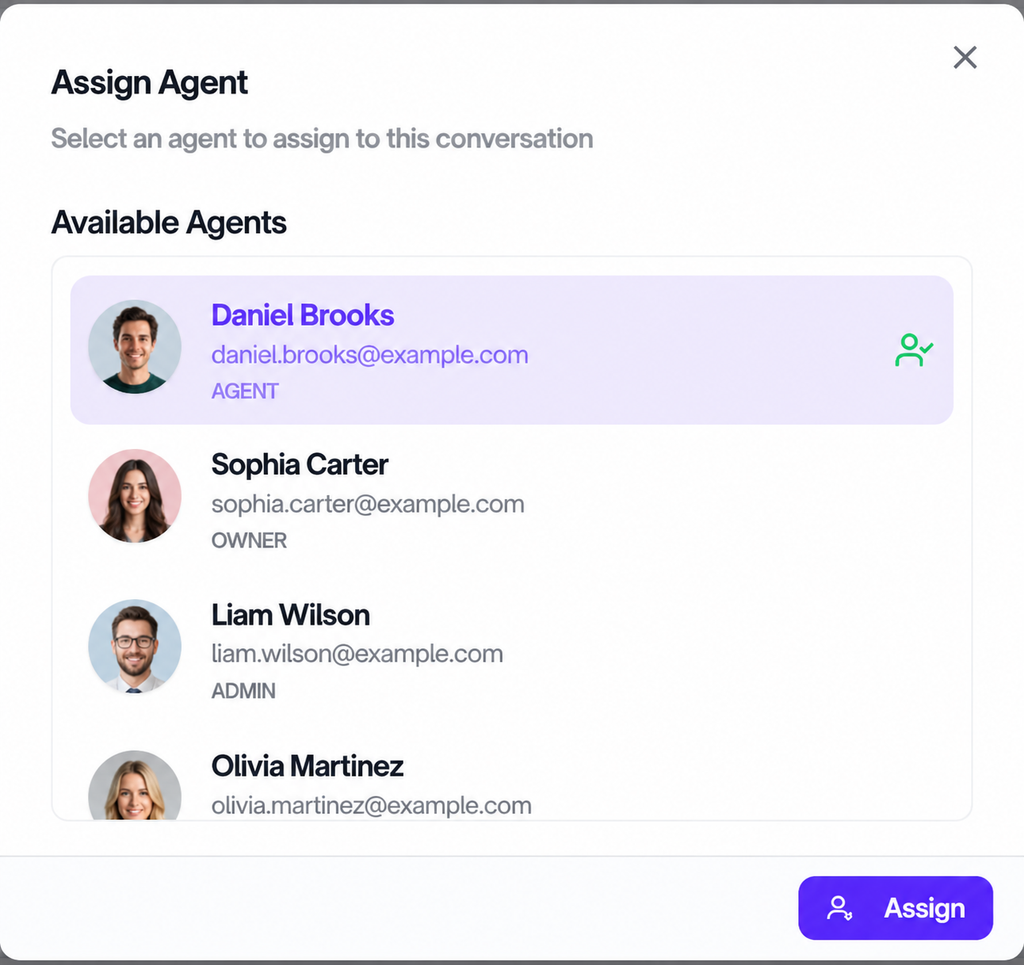
Figure G-06 Agent assignment dialog
Need Help?
Email: support@ysdesk.com
Documentation: https://docs.ysplugins.com/ys-desk