The YS Desk Inbox provides a unified workspace for managing active Conversations across connected Channels. Use the Inbox views, filters, search, and sorting controls to find Conversations that need attention.
Open the Inbox
Go to Inbox from the main navigation.
The primary Conversation views are:
| View | Purpose |
| All | Shows the Workspace’s active Conversations |
| Mine | Shows Conversations assigned to you |
| Unassigned | Shows active Conversations that do not currently have an assigned Agent |
| Mentions | Shows Conversations containing mentions directed to you |
| Resolved | Shows resolved Conversation history |
Work with Unread Conversations
Unread counters appear beside relevant Inbox views. These counts help identify Conversations requiring attention.
The Inbox itself can also display an unread indicator when unread activity exists.
Filter Conversations
Use the filter control in the Conversation list to narrow the results.
Available filters include:
- Status
- Assigned Agent
- Assignment
- Date range
- Mentioned by
Read-status filtering supports:
- All
- Open
- Unread
Search Conversations
Use Conversation search to locate a specific Conversation or matching customer activity.
Combine search with the available filters when working with a large Inbox.
Sort Conversations
Conversation lists can be organized using supported date-based sorting, including:
- Last Updated
- Oldest Updated
- Newest Created
- Oldest Created
Conversation Actions
A Conversation item can provide actions such as:
- Pin Chat / Unpin Chat
- Assign Agent / Reassign Agent
- Unassign Agent
- Resolve Conversation
- User Details
- Send CSAT Survey
- Send Transcript / Download Transcript
- Delete Conversation
Understand the Queues
Use Mine when you are responsible for a Conversation.
Use Unassigned when a Conversation requires someone on the team to take ownership.
Use Resolved when reviewing historical Conversations that no longer require active handling.
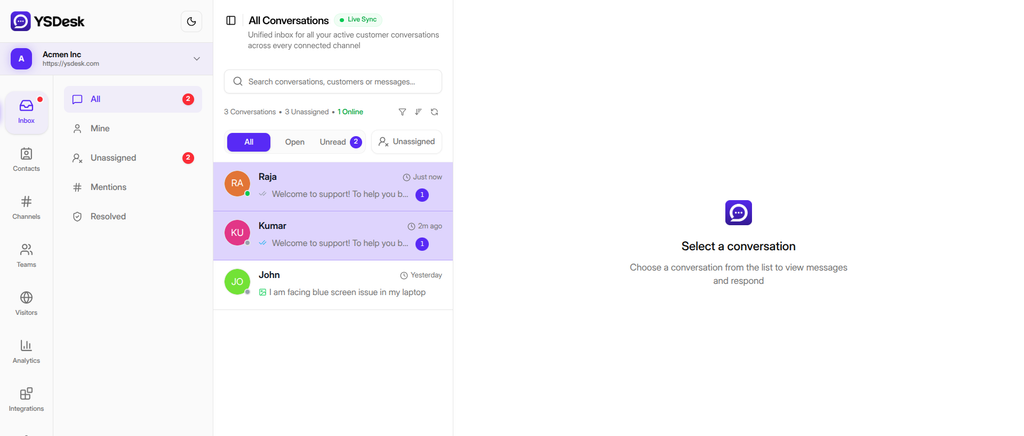
Figure G-01 Inbox All view showing the Inbox navigation, Conversation list, unread indicators, and filter controls
Need Help?
Email: support@ysdesk.com
Documentation: https://docs.ysplugins.com/ys-desk