Web Chat configuration controls how the widget looks, behaves, and presents itself to visitors. YS Desk provides two configuration surfaces: dashboard settings for persistent Web Chat configuration and SDK runtime options for client-side behavior.
Configuration Overview
Web Chat configuration is managed through the YS Desk dashboard and the Web Chat SDK.
Dashboard Configuration
In the YS Desk dashboard, Web Chat settings are available under:
Settings → Chatbox Settings
The available sections are:
- Chatbox Appearance — Configure Web Chat appearance and workspace branding.
- Chat Launcher — Configure launcher position, style, animation, text, and offsets.
- Welcome Message — Configure the welcome message and pre-chat greeting.
- Offline Message — Configure the message shown when the support team is unavailable.
- Chat Settings — Configure available Web Chat feature toggles.
The dashboard provides the persistent configuration used by Web Chat.
SDK Runtime Configuration
The Web Chat SDK accepts client-side configuration through the run command:
window.YSDeskSDK(‘run’, {
token: ‘YOUR_CHANNEL_TOKEN’
});
Runtime configuration can provide client-specific values such as visitor information, launcher visibility, initialization behavior, and lifecycle callbacks.
See [Web Chat → SDK Reference] for the complete SDK configuration reference.
Dashboard Settings Overview
Navigating to Web Chat Settings
In the YS Desk dashboard, open:
Settings → Chatbox Settings
From there, select the configuration area you want to manage:
Chatbox Appearance
Configure Web Chat appearance and workspace branding.
Chat Launcher
Configure launcher position, style, animation, text, and offsets.
Welcome Message
Configure the welcome message and pre-chat greeting.
Offline Message
Configure the offline message.
Chat Settings
Configure Web Chat feature toggles.
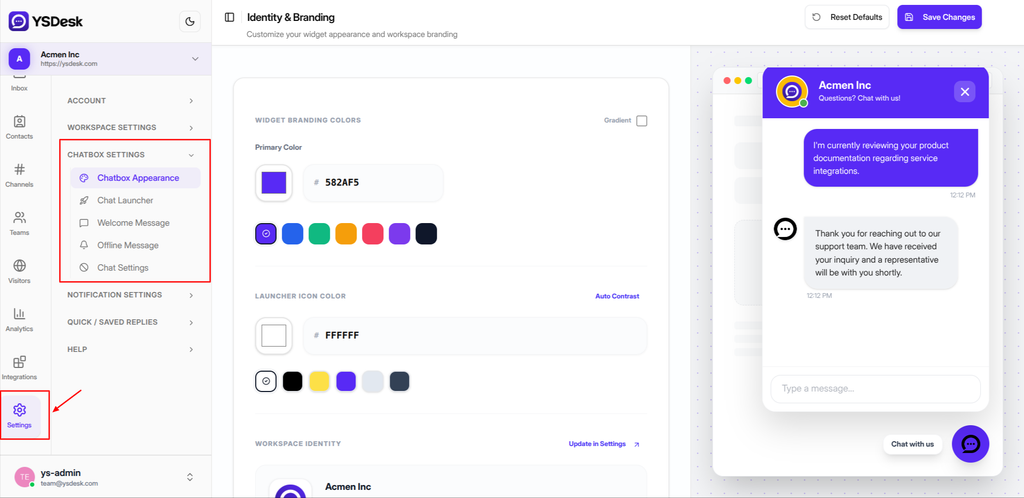
Figure WC-08 — Navigating to Chatbox Settings in the YS Desk dashboard sidebar.
Appearance & Branding
The Chatbox Appearance section controls the visual branding of Web Chat.
Available settings include the primary color, gradient configuration, launcher icon color, and workspace identity.
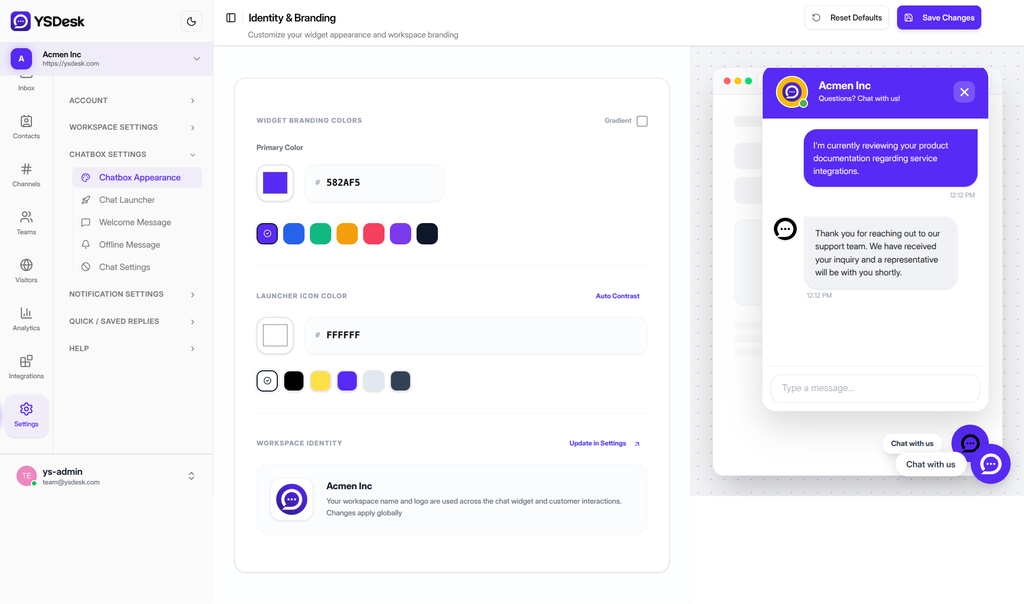
Figure WC-09 — The YS Desk Web Chat configuration interface showing Identity & Branding, Chat Launcher, and Chat Settings with a desktop live preview.
Chat Launcher
The Chat Launcher section controls how the floating Web Chat launcher is presented.
Available settings include launcher style, position, text, animation, offsets, and supported visual effects.
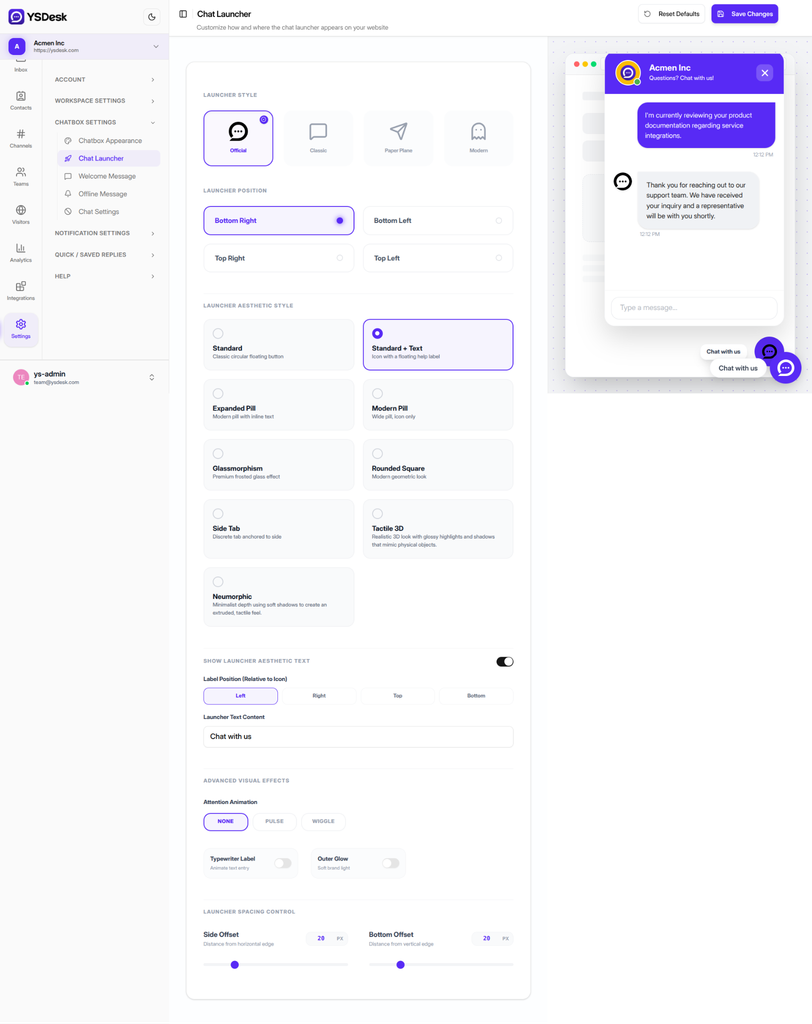
Figure WC-10 — Chat Launcher settings for configuring the launcher style, position, aesthetic, label, animation, visual effects, and spacing.
For the complete launcher configuration, see [Web Chat → Launcher].
Welcome Message
The Welcome Message section controls the message displayed during the Web Chat welcome experience.
It also contains the Pre-chat Greeting used in the pre-chat experience.
The Welcome Message supports up to 100 characters, while the Pre-chat Greeting supports up to 50 characters.
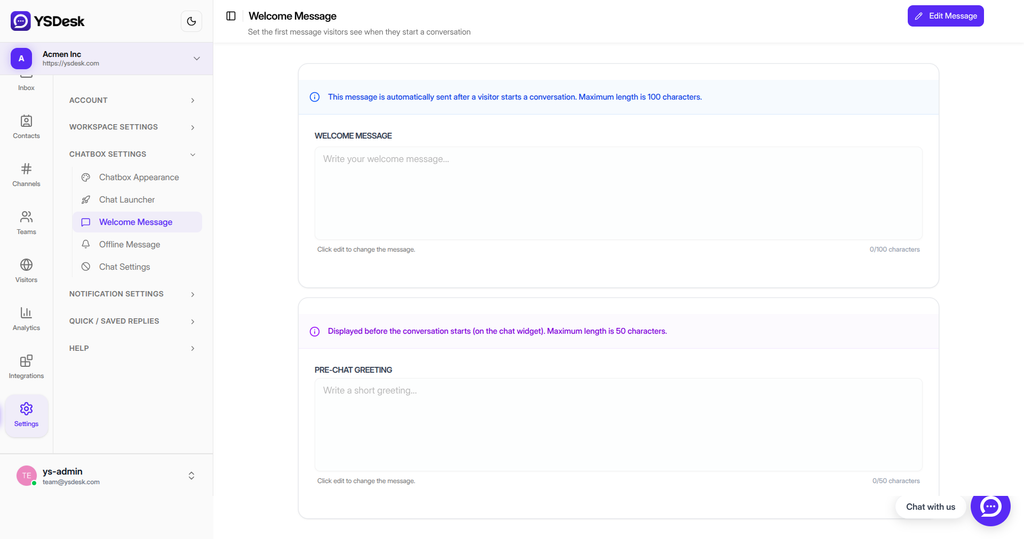
Figure WC-11 — Welcome Message settings for configuring the message shown when a visitor starts a new conversation, including the pre-chat greeting.
For detailed offline-message behavior, see [Web Chat → Configuration].
Offline Message
The Offline Message section controls the message displayed when the support team is unavailable.
The message supports up to 250 characters.
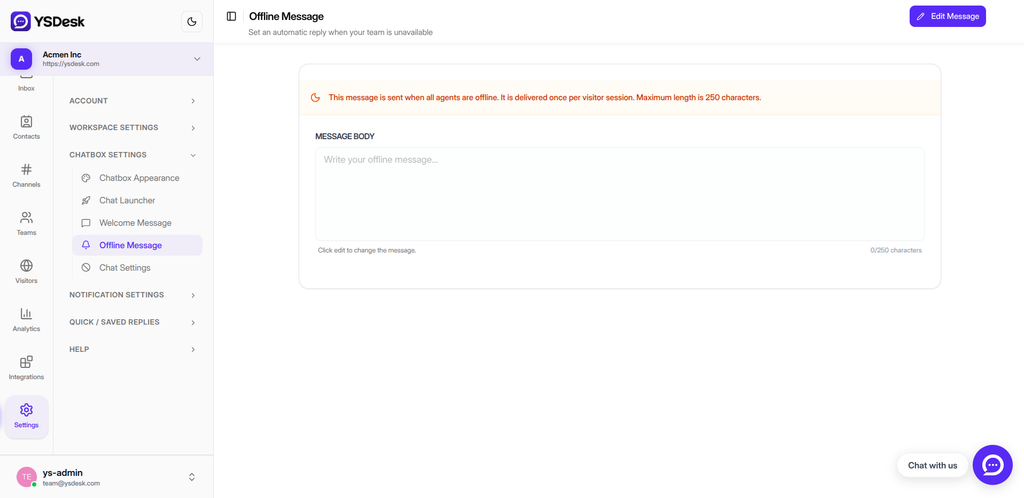
Figure WC-12 — Offline Message settings for configuring the automatic message shown when all agents are unavailable.
For detailed offline-message behavior, see [Web Chat → Configuration].
Chat Settings
The Chat Settings section contains Web Chat feature toggles.
The available settings include:
Rich Media Uploads
Controls whether visitors can upload supported media through Web Chat.
Satisfaction Surveys
Controls whether customer satisfaction surveys are enabled.
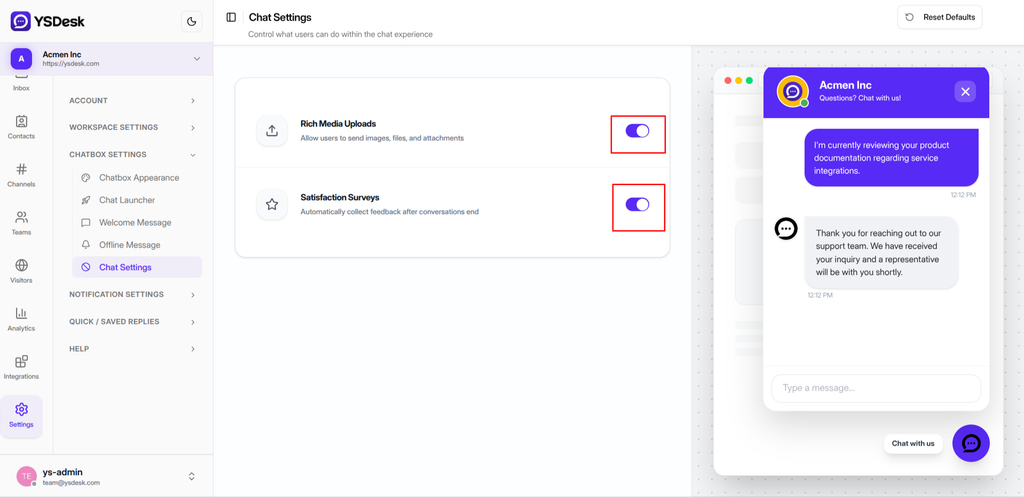
Figure WC-13 — Chat Settings showing Rich Media Uploads and Satisfaction Surveys feature toggles.
For file upload and customer satisfaction configuration, see [Web Chat → Messaging & Media].
SDK Runtime Configuration
Runtime configuration is supplied when initializing the Web Chat SDK.
window.YSDeskSDK(‘run’, {
token: ‘YOUR_CHANNEL_TOKEN’
});
The SDK also supports client-specific runtime options.
Client-Specific Options
Supported runtime options include:
| Option | Purpose |
| userEmail | Provides visitor email information. |
| userName | Provides visitor name information. |
| lazy | Controls lazy initialization behavior. |
| launcher.show | Controls whether the launcher is displayed. |
| launcher.tooltip | Sets launcher tooltip text. |
| theme.darkMode | Controls the runtime dark-mode preference. |
| onOpen | Runs when Web Chat opens. |
| onClose | Runs when Web Chat closes. |
| onReady | Runs when the SDK is ready. |
| embeddedApp | Enables supported embedded application behavior. |
| supportSession | Provides supported support-session context. |
The Channel Token is required for SDK initialization.
Runtime Configuration Example
A client application can provide runtime options together with the Channel Token:
window.YSDeskSDK(‘run’, {
token: ‘YOUR_CHANNEL_TOKEN’,
userEmail: ‘alex.smith@example.com’,
userName: ‘Alex Smith’,
lazy: true,
launcher: {
show: true,
tooltip: ‘Chat with our support team’
},
theme: {
darkMode: true
},
onReady: () => {
console.log(‘YS Desk Web Chat SDK is fully loaded.’);
},
onOpen: () => {
console.log(‘Chat widget opened.’);
},
onClose: () => {
console.log(‘Chat widget minimized.’);
}
});
For the complete runtime option reference and supported SDK methods, see [Web Chat → SDK Reference].
Configuration Precedence
Dashboard settings and SDK runtime options are not resolved using one universal override rule.
For visual and launcher properties that are configured in the dashboard, the dashboard configuration is authoritative.
The general resolution model is:
SDK Built-in Defaults
↓
SDK Runtime Configuration
↓
YS Desk Dashboard Configuration
↓
Effective Web Chat Configuration
For example, the dashboard may define:
Primary Color: #10B981
while the SDK provides:
theme: {
primaryColor: ‘#F59E0B’
}
The dashboard value is applied to the Web Chat.
SDK theme values for these properties therefore act as runtime fallbacks rather than final overrides.
Runtime-only properties that do not have corresponding dashboard settings remain controlled by the SDK initialization.
Configuration Rule
Use the following rule when combining dashboard and SDK configuration:
- Dashboard settings take precedence for supported visual and launcher properties configured for the Web Chat channel.
- SDK runtime options control client-specific behavior when no corresponding dashboard configuration exists.
Do not assume that every SDK option overrides every dashboard setting.
Saving and Resetting Configuration
Saving Changes
Appearance and launcher settings are edited in the dashboard and saved using Save Changes.
The configuration interface tracks unsaved changes. Leaving a page while changes are pending can display a confirmation asking whether the unsaved changes should be discarded.
Automatically Saved Features
The Rich Media Uploads and Satisfaction Surveys feature toggles are saved immediately when changed.
The interface displays a loading state while the update is being processed.
Welcome and Offline Messages
Welcome and Offline Message settings use an edit-and-save workflow.
- Click Edit Message.
- Modify the message.
- Click Save Changes.
When there are unsaved changes, leaving the page can display the Discard Unsaved Changes? confirmation.
These sections use Revert to Saved to restore the currently saved message value.
Revert to Saved is different from Reset Defaults. It restores the currently saved value rather than the system default.
Resetting to Defaults
The Reset Defaults control is section-scoped.
Clicking Reset Defaults immediately restores the defaults for the current section and persists those values. A second confirmation dialog is not displayed.
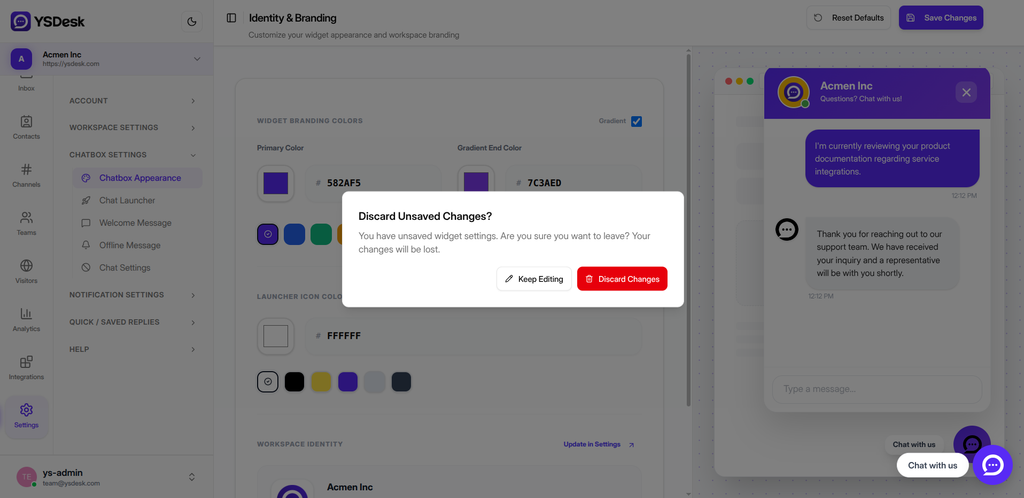
Figure WC-14 — Discard Unsaved Changes confirmation dialog shown while editing Web Chat appearance settings.
For example:
- Appearance restores the default branding configuration.
- Launcher restores the default launcher configuration.
- Chat Settings restores the supported feature-toggle defaults.
Resetting one section does not reset unrelated Web Chat configuration.
Plan & Feature Availability
Some Web Chat configuration features require a paid subscription plan.
Free Plan
On the Free plan:
- The Welcome Message remains on its default value and cannot be freely edited.
- The Offline Message configuration is gated.
- Satisfaction Surveys are gated.
The Pre-chat Greeting remains available for configuration.
Starter Plan and Above
The Chat Launcher, Welcome Message, Offline Message, and Satisfaction Surveys require the Starter plan or above.
The dashboard displays the appropriate upgrade or locked state when a feature is unavailable.
Live Preview
The Web Chat configuration interface provides a desktop live preview for supported appearance and launcher settings.
The preview:
- Appears on desktop layouts.
- Reflects draft changes while editing Identity & Branding and Chat Launcher.
- Uses a desktop-style browser preview.
- Does not provide a mobile viewport preview.
- Is not displayed on the Welcome Message or Offline Message configuration pages.
Use the preview to review supported appearance and launcher changes before saving.
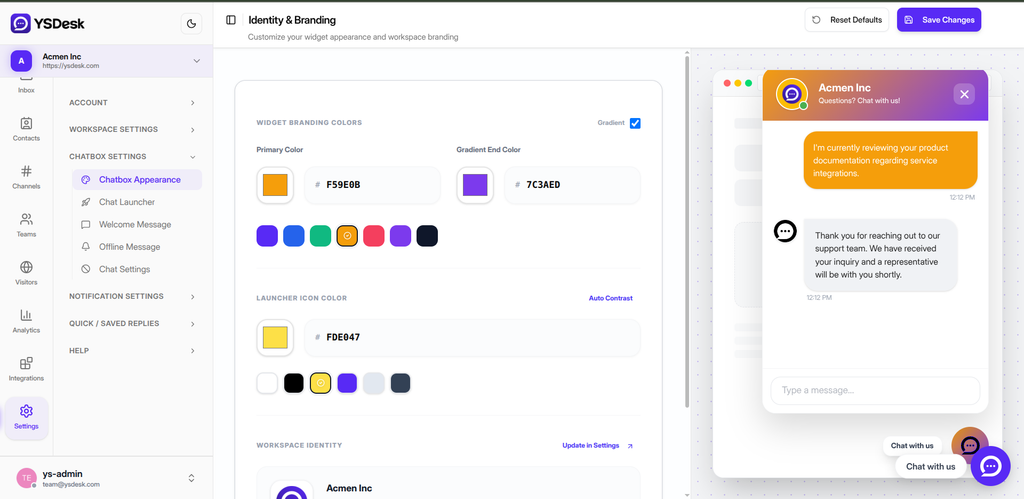
Figure WC-15 — Desktop live preview reflecting draft Identity & Branding and Chat Launcher configuration changes.
Applying Configuration Changes
The general configuration lifecycle is:
Administrator Changes Web Chat Settings
↓
Settings Saved or Auto-Saved
↓
Configuration Updated
↓
Active Web Chat Receives Supported Updates
↓
Effective Widget Behavior Changes
Supported configuration changes can be propagated to active Web Chat sessions in real time.
The exact behavior depends on where the affected UI is rendered. Settings used inside the Web Chat interface can update while a session is active. The floating launcher is rendered separately on the host website, so launcher configuration changes may require the host page to be refreshed or navigated before the updated launcher configuration is applied.
Configuration Scope
Web Chat configuration is not uniformly scoped to a single channel.
Channel Configuration
Appearance, launcher, and channel-level feature settings are associated with the Web Chat channel.
Workspace Configuration
The following message settings are managed at the workspace level:
- Welcome Message
- Pre-chat Greeting
- Offline Message
These workspace-level message settings can apply across the Web Chat channels associated with the workspace.
Need Help?
Email: support@ysdesk.com
Documentation: https://docs.ysplugins.com/ys-desk