Use this checklist to verify that your YS Desk workspace and Web Chat integration are ready for production traffic.
The checklist focuses on the configuration and end-to-end checks that a developer or workspace administrator should complete before making Web Chat available to customers.
Pre-Launch Requirements
| Requirement | Classification | Purpose |
| Active Workspace | Required | The workspace must be active and available. |
| Authorized Website Domain | Required | The production website must be authorized for Web Chat. |
| Active Web Chat Channel | Required | A Web Chat channel must be active. |
| Channel Token | Required | The active channel token is required to initialize Web Chat. |
| Web Chat Script | Required | The Web Chat script must be installed on the production website. |
| HTTPS | Required | The production website must use valid HTTPS. |
| Active Agent in Inbox | Recommended | Ensures incoming conversations can be handled immediately. |
| End-to-End Smoke Test | Recommended | Confirms visitor-to-agent messaging works before launch. |
| Welcome / Offline Messages | Optional | Default behavior is available without customization. |
| Web Chat Customization | Optional | Additional visual customization can be applied when needed. |
| Paid Subscription | Optional | Required only when higher plan limits or paid features are needed. |
| Payment Webhooks | Not Currently Required | Billing callbacks are not required for Web Chat launch. |
Step 1: Authorize Website Domains
Before installing Web Chat, make sure the production website domain is configured for the workspace.
Go to:
Settings → Workspace Settings → Workspace Information
Add the production hostname to the workspace’s Website Domain configuration.
Multiple domains can be entered when supported:
example.com (or) www.example.com (or) staging.example.com
This allows Web Chat to be used from the configured website origins.
For a production deployment, include every hostname where the Web Chat integration will actually run.
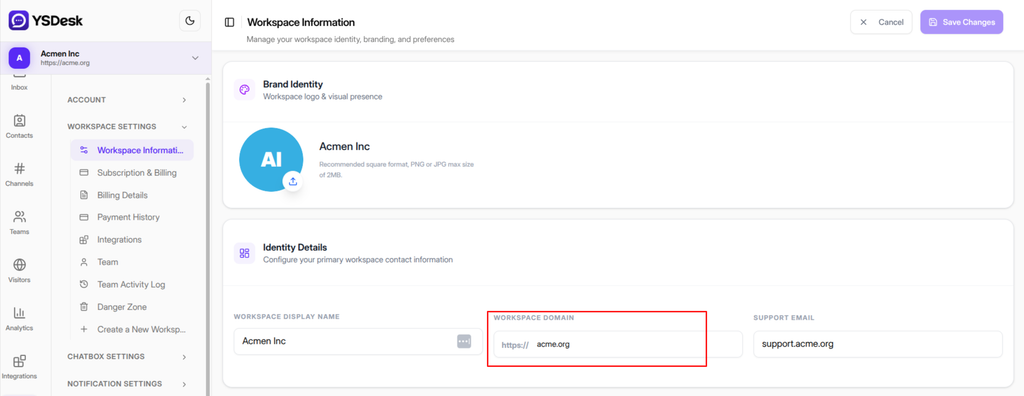
Figure LAUNCH-01 — Configuring authorized website domain in Workspace Information.
Domain Verification
Before continuing, verify that:
- The production hostname is configured.
- Any required subdomains are included.
- Staging domains are included when the same workspace is used for staging.
- The website is using the intended production domain.
An unauthorized website origin prevents Web Chat from initializing.
Step 2: Verify the Web Chat Channel
Confirm that the workspace has an active Web Chat channel.
The channel must be available for customer-facing use before the website can initialize the integration.
Verify that:
- The Web Chat channel exists.
- The channel is Active.
- The channel has a valid Channel Token.
- The channel has not been paused, archived, or otherwise made unavailable.
Channel Token
The Channel Token identifies the Web Chat channel used by the website.
Use the token associated with the active Web Chat channel when installing the Web Chat integration.
A Channel Token is different from a visitor session:
Channel Token
↓
Identifies the Web Chat channel
↓
Website / Origin Validation
↓
Visitor Session
↓
Visitor Access
The Channel Token does not provide direct access to private workspace conversations.
Step 3: Install the Web Chat Script
Add the current YS Desk Web Chat installation script to the production website.
The integration uses the YSDeskSDK global and initializes the Web Chat channel with its Channel Token.
<script>
(function(w, d, s, o, f, js, fjs) {
w[‘YSDeskSDK’] = w[‘YSDeskSDK’] || function() {
(w[‘YSDeskSDK’].q = w[‘YSDeskSDK’].q || []).push(arguments)
};
js = d.createElement(s), fjs = d.getElementsByTagName(s)[0];
js.id = o;
js.src = f;
js.async = 1;
fjs.parentNode.insertBefore(js, fjs);
}(window, document, ‘script’, ‘YSDeskSDK’, ‘https://widget.ysdesk.com/sdk.js’));
window.YSDeskSDK(‘run’, {
token: ‘YOUR_CHANNEL_TOKEN’
});
</script>
Replace YOUR_CHANNEL_TOKEN with the Channel Token from the active Web Chat channel.
Place the script in the website HTML where the Web Chat integration is required, following the current installation guidance.
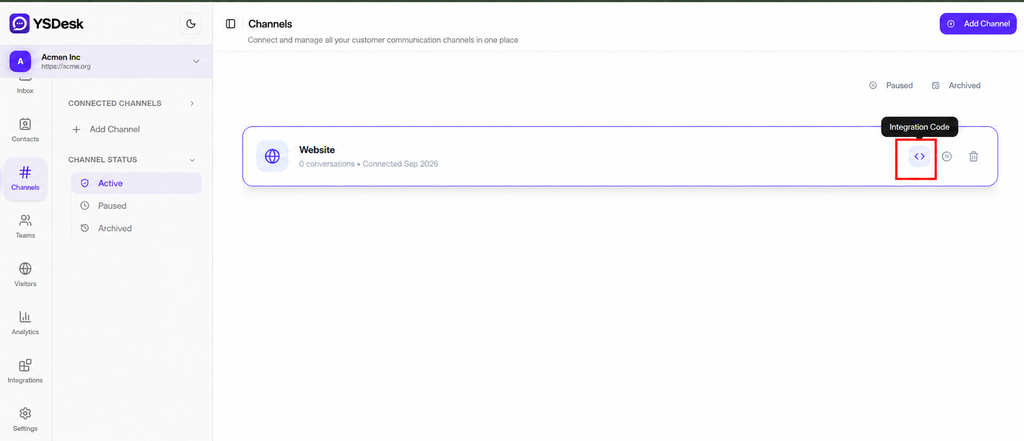
Figure LAUNCH-02a — Opening the Integration Code for the active Web Chat channel from the Channels page.
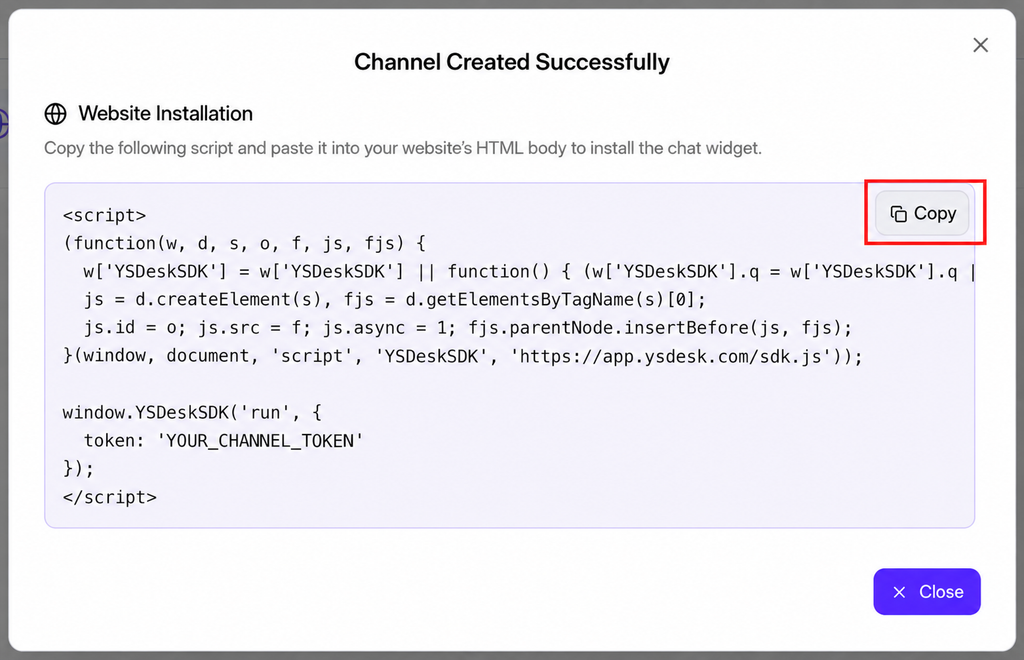
Figure LAUNCH-02b — Copying the Web Chat installation script and Channel Token.
Verify the Installation
After adding the script, verify that:
- The script is present on the intended production pages.
- The correct Channel Token is configured.
- The SDK loads successfully.
- The Web Chat launcher appears on the website.
- No browser console errors prevent initialization.
Step 4: Verify HTTPS
The production website should be served over valid HTTPS.
Verify that:
- The production URL uses https://.
- The SSL/TLS certificate is valid and not expired.
- Web Chat resources load without browser mixed-content warnings.
- The Web Chat connection can establish successfully.
Do not launch the production integration from an insecure HTTP page.
Step 5: Verify Team and Inbox Readiness
Before opening Web Chat to customers, make sure the team is ready to receive conversations.
Verify that:
- Required team members have accepted their invitations.
- Agents have the appropriate workspace roles and permissions.
- At least one responsible team member can access the inbox.
- At least one agent is logged into YS Desk when live support is expected.
An active dashboard session allows the workspace to report the agent as online and receive real-time conversation activity.
For detailed team and permission configuration, see:
Step 6: Perform an End-to-End Smoke Test
Run a complete visitor-to-agent test from the production website before launch.
6.1 Open the Production Website
Open the production website in an Incognito or Private browser window.
Using a clean browser session helps verify the experience from a new visitor’s perspective.
6.2 Verify Web Chat
Confirm that:
- The Web Chat launcher appears.
- The interface opens correctly.
- No browser console errors prevent initialization.
6.3 Send a Test Conversation
Open Web Chat and send a simple test message.
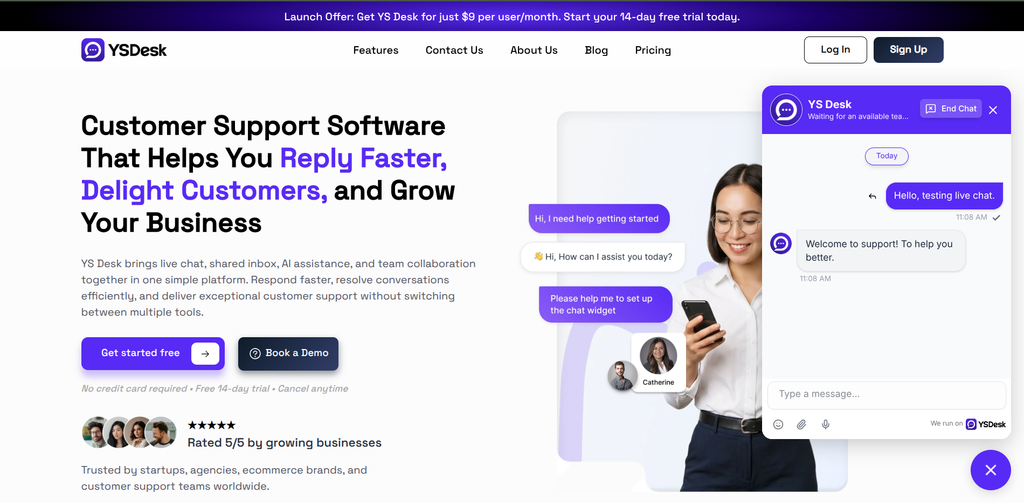
Figure LAUNCH-03 — Opening the YS Desk Web Chat on the production website and sending a test message to verify the visitor experience.
For example:
Hello, testing live chat.
6.4 Verify the Inbox
Open the YS Desk inbox and confirm that the test conversation appears.
The conversation should be visible in the appropriate conversation list and the incoming message should appear in the conversation thread.
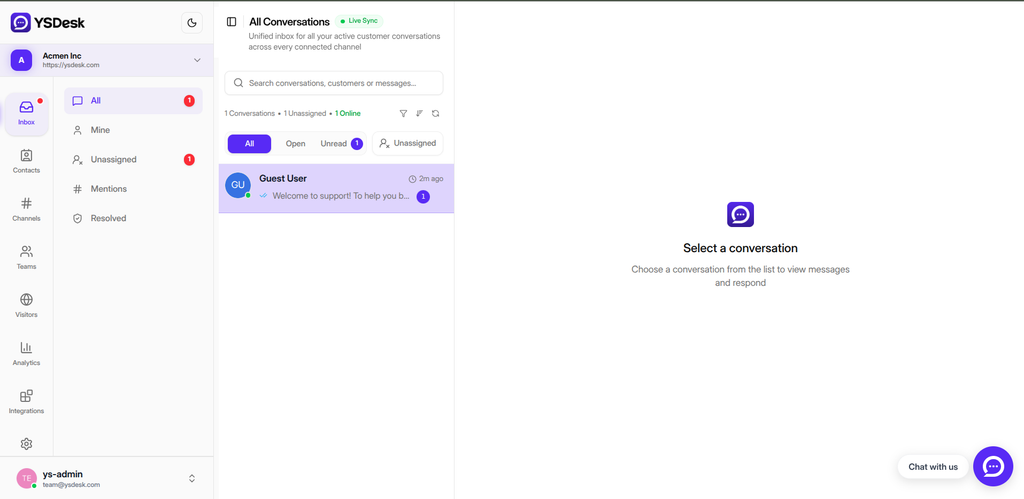
Figure LAUNCH-04 — Verifying a test conversation in the YS Desk inbox.
6.5 Verify the Agent Reply
Assign the test conversation when required and send a reply from the YS Desk inbox.
Confirm that the visitor receives the response in Web Chat.
6.6 Verify Message Delivery
Confirm that message state updates work correctly during the test.
The expected message progression includes:
SENT
↓
DELIVERED
↓
SEEN
The exact state displayed depends on the current visitor and agent interaction.
Production Verification Flow
Pre-Launch Verification
↓
Authorize Website Domains
↓
Verify Active Web Chat Channel
↓
Confirm Channel Token
↓
Install Web Chat Script
↓
Verify HTTPS
↓
Verify Team & Inbox Readiness
↓
Run Production Smoke Test
↓
Visitor Message Received
↓
Agent Reply Verified
↓
Production Launch Ready
Welcome and Offline Messaging
Welcome and offline messaging are optional production configuration steps.
YS Desk provides default behavior, so Web Chat can operate without custom message configuration.
You may customize:
- Welcome Message — the message displayed when a visitor opens Web Chat.
- Offline Message — the message displayed when agents are unavailable.
Detailed message configuration belongs under:
[Web Chat → Configuration]
Web Chat Customization
Visual customization is optional.
The default Web Chat experience can be used without additional styling configuration.
Additional Web Chat configuration is documented under:
Paid Plans and Billing
A paid subscription is not required for core Web Chat functionality.
Upgrade the workspace only when higher plan limits or paid features are required.
Payment-provider webhooks are part of billing reconciliation and are not required to launch Web Chat.
Billing configuration is documented separately under:
[Guides → Billing & Subscriptions]
Common Launch Failures
Web Chat Does Not Initialize
Verify:
- The Web Chat channel is active.
- The Channel Token is correct.
- The production website domain is authorized.
- The website is using HTTPS.
- The installation script is present on the page.
- The browser console does not report initialization errors.
Domain Is Not Authorized
This usually indicates that the website hostname does not match the workspace’s configured website domain.
Check Settings → Workspace Settings → Workspace Information and verify the production hostname.
Channel Is Unavailable
Verify that the Web Chat channel is active and has not been paused or archived.
Conversations Do Not Appear in the Inbox
Verify:
- The Web Chat launcher is functioning.
- The visitor can send a message.
- An agent is logged into YS Desk.
- The conversation appears in the appropriate inbox view.
- The real-time connection is functioning.
Internal Infrastructure
The following are not customer launch tasks:
AWS / S3 configuration
Redis configuration
MongoDB configuration
Backend environment variables
Auth0 client secrets
Webhook signing secrets
Internal support keys
Database credentials
These systems are managed internally by YS Desk.
Production Launch Completion
Your Web Chat integration is ready for production when the required checks are complete and the end-to-end smoke test succeeds.
At minimum, confirm:
- Workspace is active.
- Production website domain is authorized.
- Web Chat channel is active.
- Channel Token is available.
- Web Chat script is installed.
- Production website uses HTTPS.
- Team and inbox access are ready.
- Visitor test message reaches the inbox.
- Agent reply reaches the visitor.
- Message delivery and seen states behave as expected.
Need Help?
Email: support@ysdesk.com
Documentation: https://docs.ysplugins.com/ys-desk