The final onboarding step confirms that your workspace setup is complete and hands you off to the YS Desk inbox.
Finish Setup
The completion screen confirms that the initial onboarding setup is complete.
The screen displays:
You’re all set! 🎉
and the supporting message:
Your chat is ready. Start talking with your customers now.
This page marks the end of the onboarding wizard.
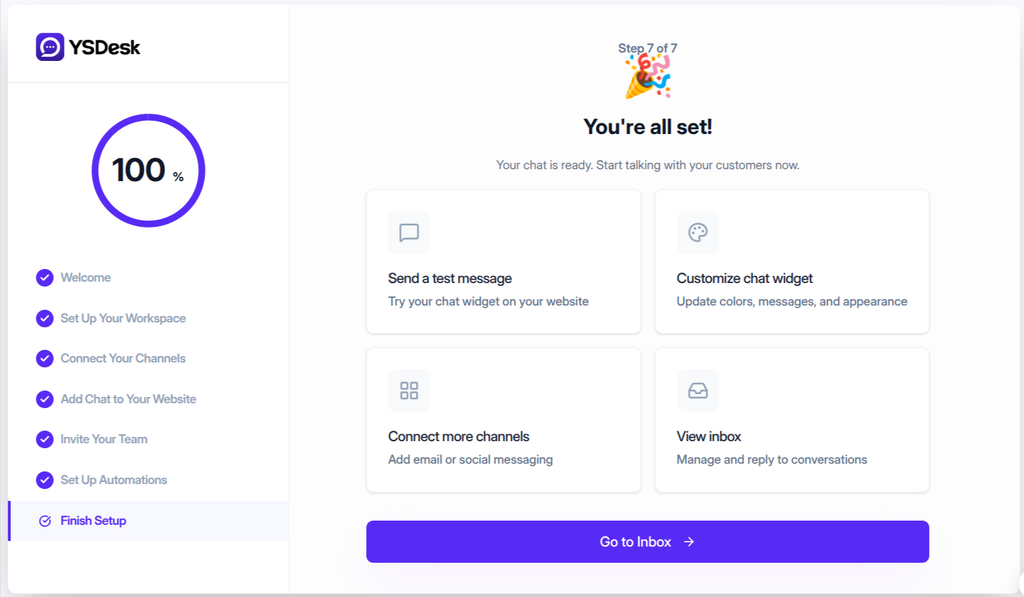
Figure ONB-07 — YS Desk onboarding Step 7 showing the setup completion screen, launchpad actions, and handoff to the workspace inbox.
Launchpad Actions
After completing setup, the launchpad provides shortcuts for commonly used actions in YS Desk.
Send a Test Message
Use this action to send a test interaction and verify that the configured Web Chat experience is working correctly.
Customize Chat Widget
Use this action to continue configuring the appearance and behavior of the customer-facing Web Chat experience.
Connect More Channels
Use this action to continue adding supported communication channels to the workspace.
View Inbox
Use this action to open the YS Desk inbox and begin managing customer conversations.
The completion screen currently presents these four launchpad actions.
Complete Onboarding
Select:
Go to Inbox →
to finish the onboarding flow and open the workspace inbox.
Completing onboarding records the final onboarding state for the user and allows the user to proceed to normal workspace operations.
Expected Result
After completing Step 7:
- The onboarding process is marked as complete.
- The user is taken to the workspace inbox.
- The configured Web Chat setup is ready for customer interactions.
- The completion screen provides shortcuts for testing, customization, additional channel setup, and inbox access.
- The user can continue normal support operations from the YS Desk workspace.
Need Help?
Email: support@ysdesk.com
Documentation: https://docs.ysplugins.com/ys-desk