
A step-by-step guide to configuring Google rich snippets, aggregate rating schema, review SERP results, dedicated review pages, and XML sitemap integration.
Step 1: Accessing SEO & Visibility Settings (Pro Feature)
1. Log into your WordPress Admin Dashboard .
2. Click Hyoka in the left sidebar menu.
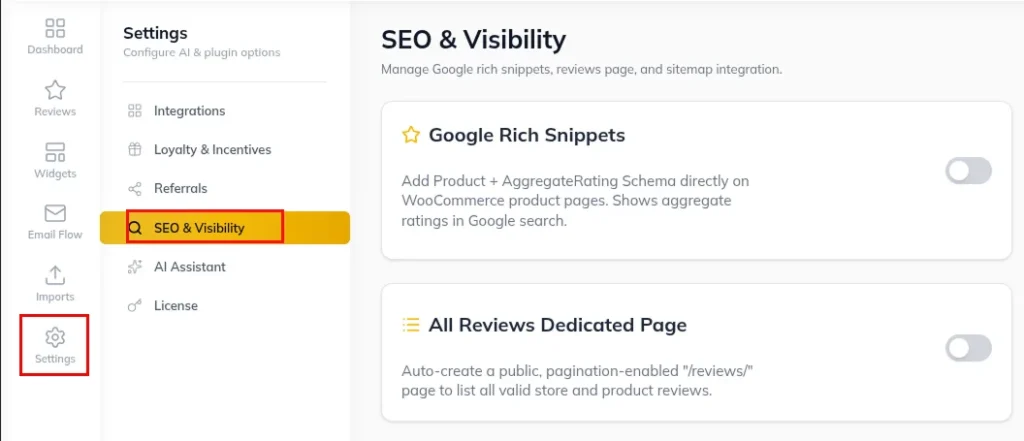
3. Select Settings from the main top tab bar, then click the SEO & Visibility sub-tab.
⚡ Pro Feature Requirement: SEO & Visibility configurations require an active Hyoka Pro license. If Pro is not active, attempting to toggle settings will launch the Hyoka Pro upgrade modal.
Step 2: Enabling Google Rich Snippets (Product & AggregateRating Schema)
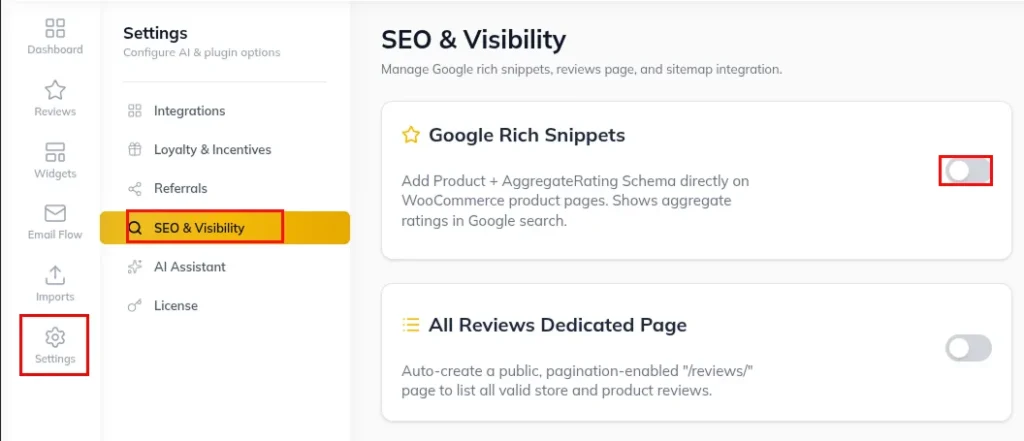
1. Locate the Google Rich Snippets card in the top-left of the SEO & Visibility tab.
2. Toggle the switch to ON to enable schema output.
3. How it Works: Hyoka automatically hooks into WooCommerce’s structured data pipeline
( woocommerce_structured_data_product ) and injects the AggregateRating JSON-LD payload containing your store’s average rating score and total approved review count directly onto product pages.
Step 3: Enabling Review Rich Results (Individual Review Schema)
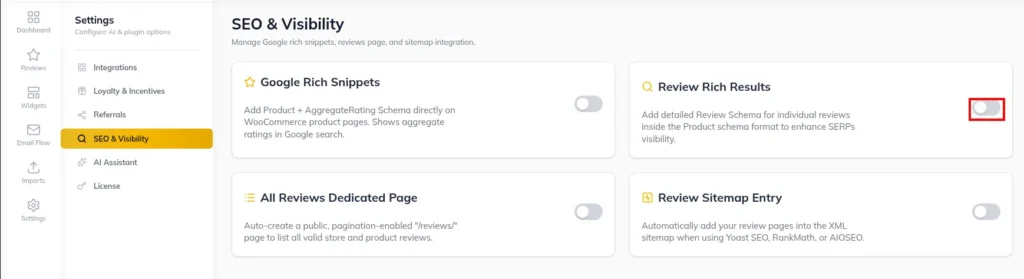
1. Locate the Review Rich Results card in the top-right of the SEO & Visibility tab.
2. Toggle the switch to ON to enable detailed review schema.
3. How it Works: Hyoka automatically formats up to 20 top approved customer reviews intoJSON-LD @type: Review blocks (including reviewer name, 1-5 star rating value, review body text, and publish date) nested inside the WooCommerce Product schema format.
Step 4: Configuring the Dedicated All Reviews Page (/reviews/)
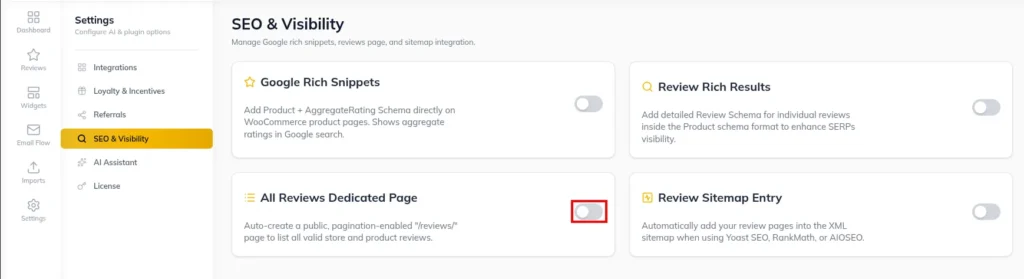
1. Locate the All Reviews Dedicated Page card in the bottom-left of the SEO & Visibility tab.
2. Toggle the switch to ON.
3. How it Works: Upon activation, Hyoka automatically checks for or creates a public WordPress page located at /reviews/ embedded with the [hyoka_all_reviews] shortcode.
4. Frontend Experience: Visitors can browse a dedicated, paginated store-wide review page showing reviewer names, star ratings, review text, and links back to the respective WooCommerce products.
Step 5: Enabling Review Sitemap Entry (Yoast, Rank Math & AIOSEO)
1. Locate the Review Sitemap Entry card in the bottom-right of the SEO & Visibility tab.
2. Toggle the switch to ON.
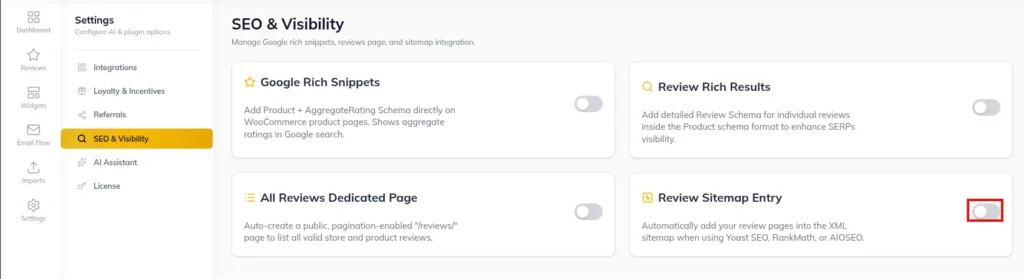
3.How it Works: Hyoka automatically detects active WordPress SEO plugins (Yoast SEO, Rank Math, or All in One SEO / AIOSEO) and injects the /reviews/ URL into the site’s XML sitemap index for search engine discovery and crawling.
Need Help?
Email: support@ysinnovations.com
Documentation: https://docs.ysplugins.com/hyoka