
A step-by-step guide to importing existing customer reviews from Judge.me, Loox, Yotpo CSV files into Hyoka Product Reviews.
Step 1: Navigating to Hyoka Imports Tool
1. Log into your WordPress Dashboard.
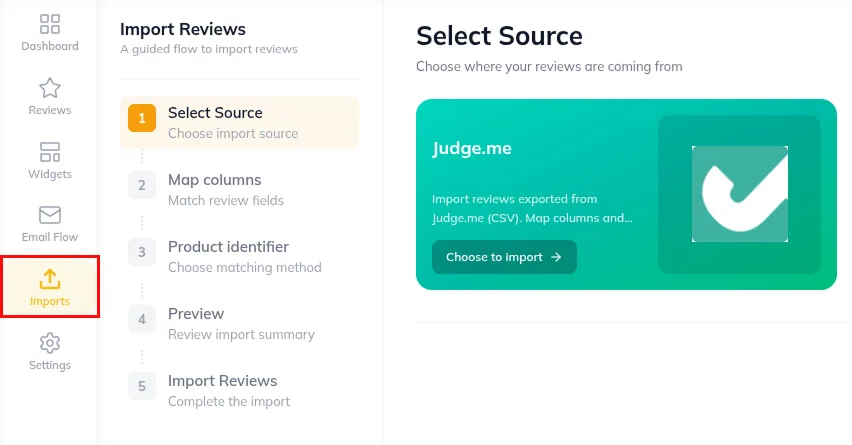
2. Click Hyoka in the left WordPress menu.
3. Select Imports in the primary navigation sidebar (Upload icon).
Step 2: Selecting Source Format (Judge.me, Loox, Yotpo, Shopify, CSV)
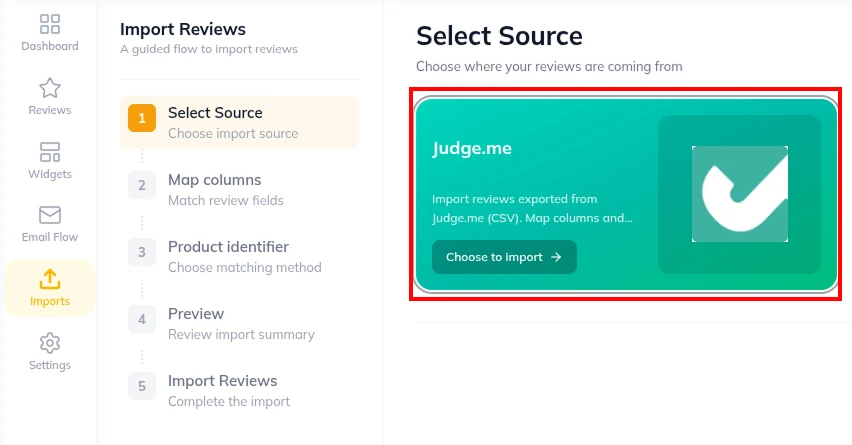
1. Under Imports, select your previous review provider preset:
- Judge.me CSV
- Loox CSV
- Yotpo CSV
Step 3: Uploading & Mapping CSV Data Columns
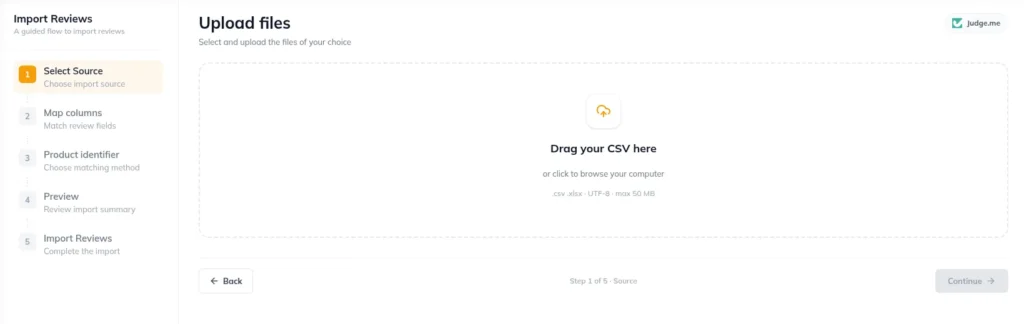
1. Drag and drop your .csv file into the file upload container.
2. Verify automatically detected column mappings:
Reviewer Name → Customer Name
Rating → Star Score (1-5)
Body / Comment → Review Content
Product SKU / ID → WooCommerce Target Product
Date → Review Submission Timestamp
Media URLs → Photo / Video Attachments
Step 4: Executing Import & Verifying Product Assignments
1. Click Run Import.
2. Monitor real-time progress bar detailing imported review count, media file downloads, and product matches.
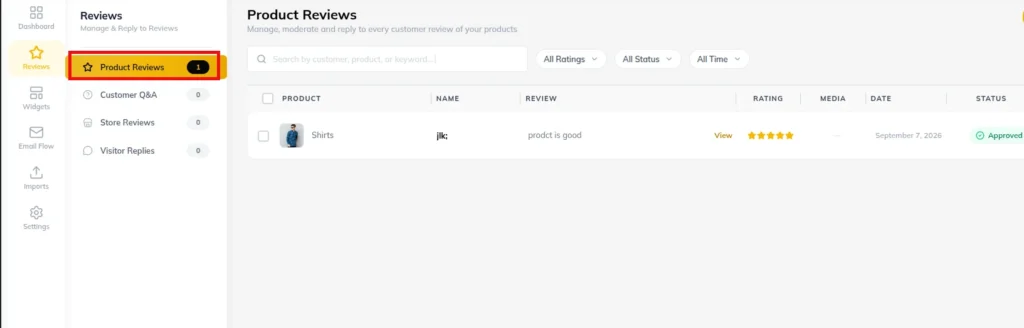
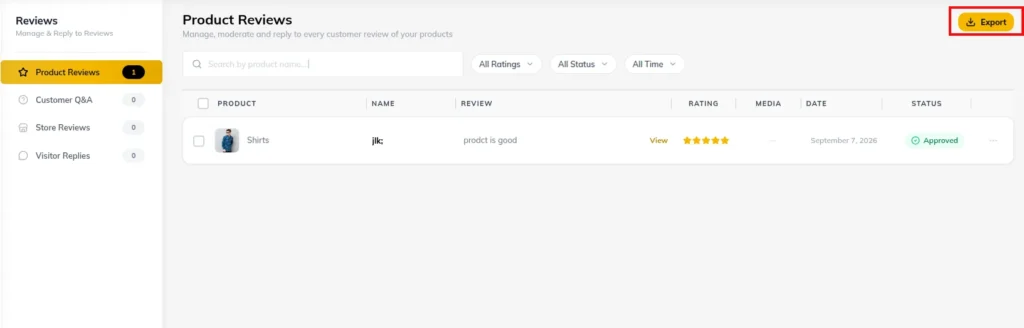
3. Open Hyoka → Reviews → Product Reviews to verify that imported reviews appear with correct ratings and product attachments.
Step 5: Exporting Reviews for Backup & Reporting
1. Under export controls, select date range or filter by star rating.
2. Select export format (CSV File or JSON File).
3. Click Download Export File to save your complete review backup.
Need Help?
Email:support@ysinnovations.com
Documentation: https://docs.ysplugins.com/hyoka