
A step-by-step campaign setup guide to offering review discount incentives, percentage vs fixed offers, tiered photo/video bonus rewards, and automated coupon delivery.
Step 1: Accessing Loyalty & Incentives Campaign Manager
1. Log into your WordPress Dashboard.
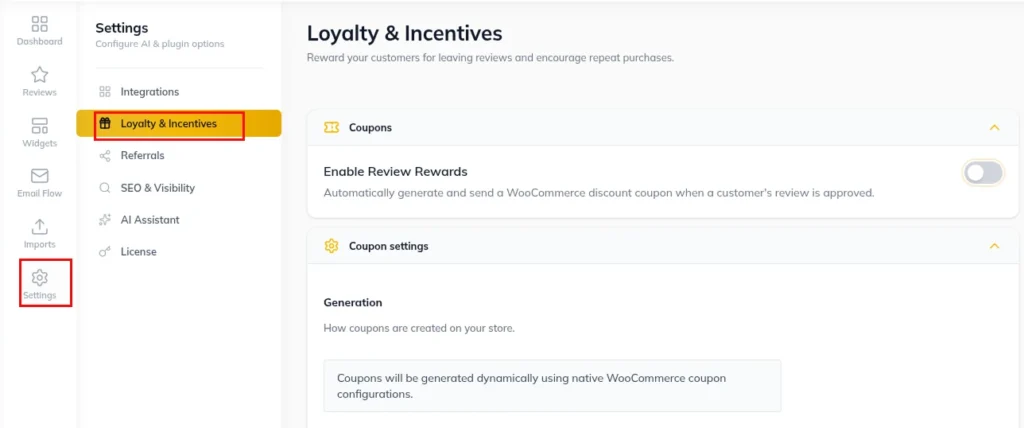
2. Click Hyoka in the left WordPress menu.
3. Select Settings in the primary navigation sidebar, then click the Loyalty & Incentives sub-tab.
Step 2: Enabling Review Incentives (Master Incentive Toggle)
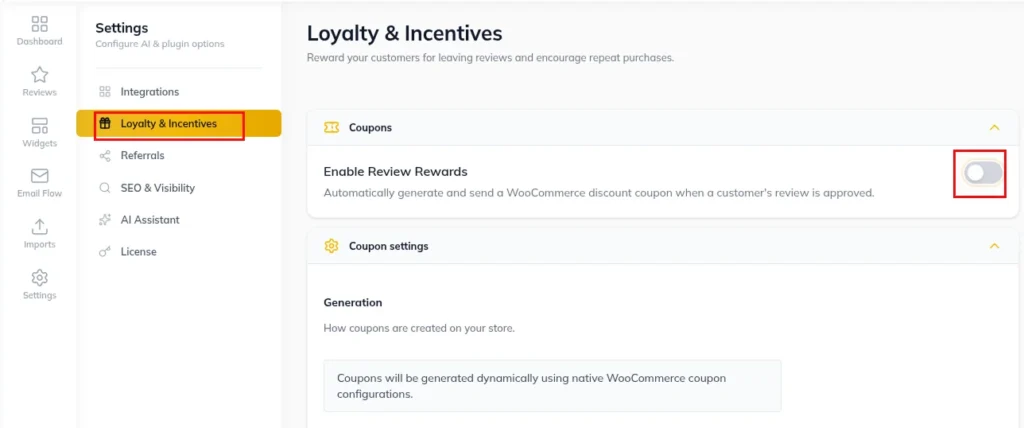
1. Under Loyalty & Incentives, locate the Enable Review Incentives toggle switch.
2. Toggle the switch to ON.
3. Select when coupons are issued:
Immediately Upon Review Submission
Upon Admin Approval of Review (Recommended for quality control)
Step 3: Configuring Discount Types (Percentage vs Fixed Amount) & Offer Values
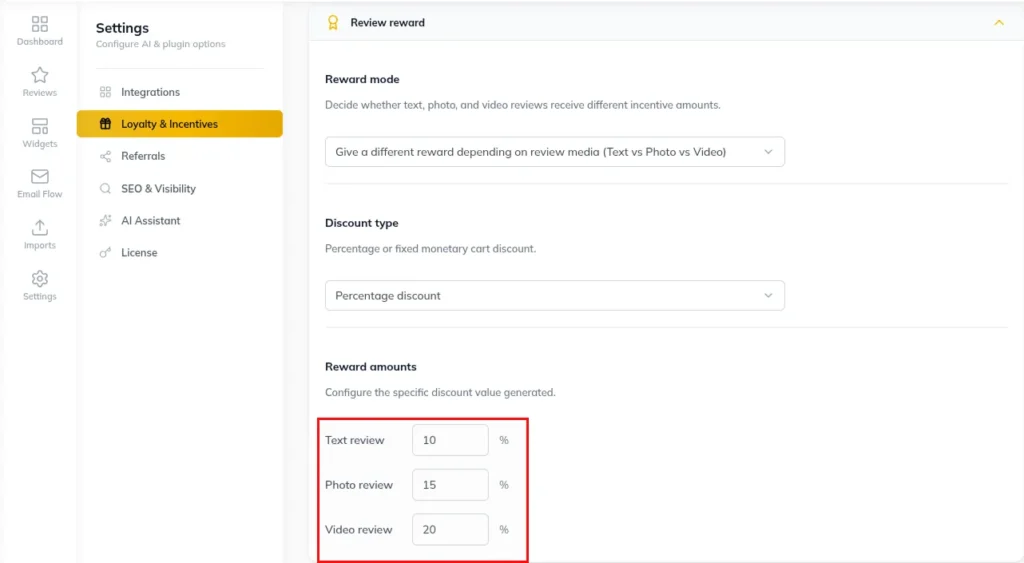
1. Under Discount Configuration, choose your Discount Type:
Percentage Discount: E.g.,10% OFF , 15% OFF
Fixed Cart Discount: E.g.,$5 OFF , $10 OFF
2. Enter the base discount value in the Discount Amount field.
Step 4: Setting Up Tiered Bonus Rewards for Photo & Video UGC
1. Toggle Enable Tiered Rewards for Media Uploads to ON.
2. Define reward tiers to encourage customers to attach photos and videos:
- Standard Text Review: Base Discount (e.g., 10% OFF )
- Review with Photo: Bonus Tier 1 (e.g.,15% OFF )
- Review with Video: Bonus Tier 2 (e.g.,20% OFF )
Step 5: Setting Coupon Expiration & Minimum Spend Restrictions
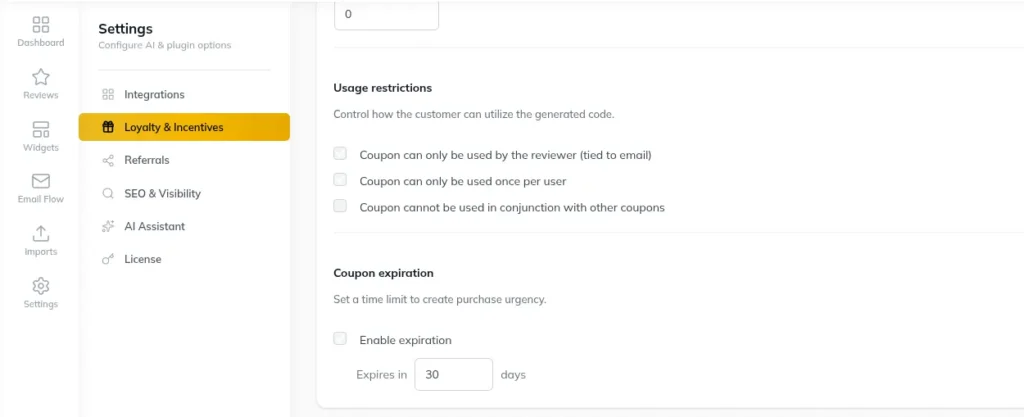
1. Set Coupon Expiration Period: Enter the validity duration (e.g.,
30 Days from the date of issue).
2. Set Minimum Spend Threshold: Define minimum order spend required to apply the coupon (e.g.,$50 ).
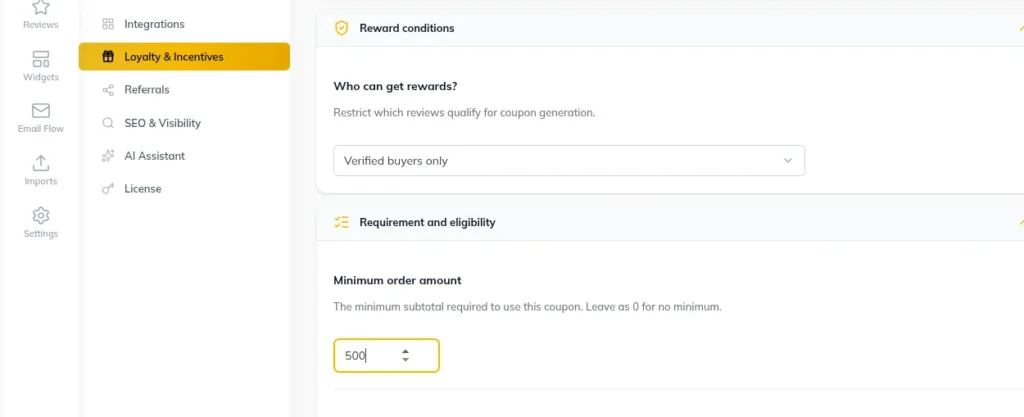
3. Click Save Changes at the bottom of the page.
Need Help?
Email : support@ysinnovations.com
Documentation : https://docs.ysplugins.com/hyoka