
A step-by-step guide to enabling customer image & video uploads, configuring upload limits, and displaying visual UGC galleries.
Step 1: Navigating to Submission Form Media & UGC Settings
1. Log into your WordPress Dashboard.
2. Click Hyoka in the left WordPress menu.
3. Select Email Flow in the primary navigation sidebar, then click Submission Form.
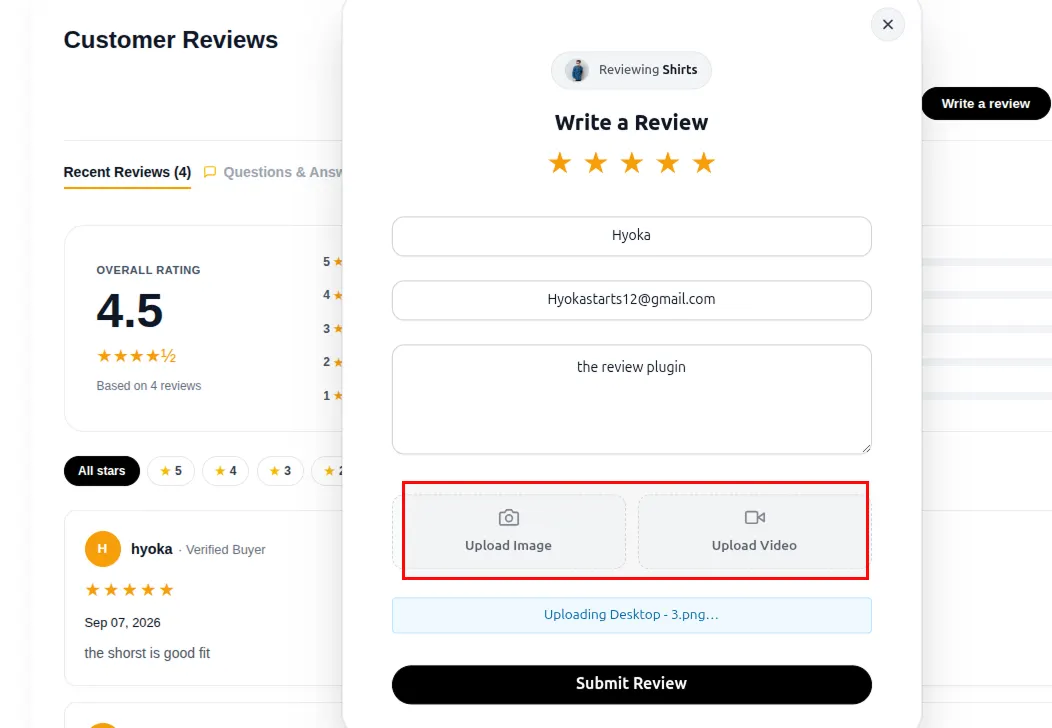
Step 2: Enabling Customer Photo & Video Upload Attachments
1. Under Submission Form, toggle Allow Photo Uploads to ON.
2. Toggle Allow Video Uploads to ON.
3. Specify maximum number of files per customer review up to 5 photos and 1 video is fixed.
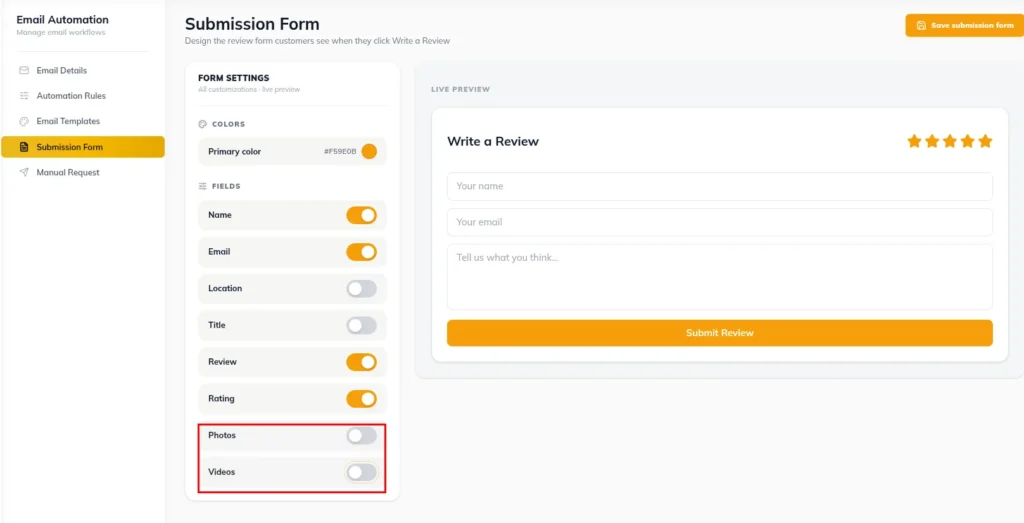
Step 3: Setting Media Upload Restrictions & File Options
1. Verify permitted image formats ( JPG ,PNG , WEBP ) and video formats ( MP4 , WEBM ,
MOV ).
2. Save submission form configuration to update customer form upload limits.
Step 4: Configuring Front-End Widget Layout & Lightbox Galleries
1. Select Widgets in the primary navigation sidebar.
2. Choose Product Review Widget or Video Carousel template.
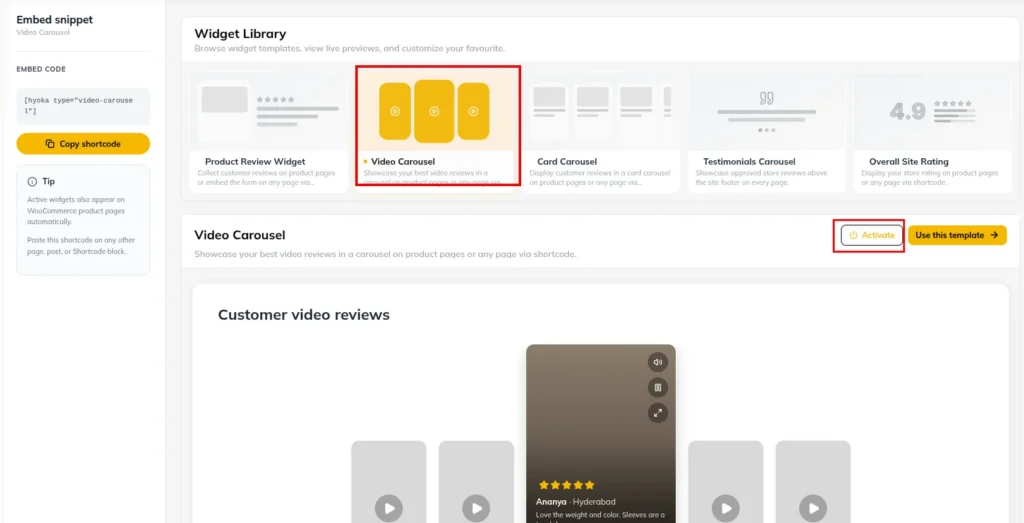
3. Enable media grid layout and interactive photo/video lightbox popups so shoppers can expand photos and play videos inline.
Step 5: Testing Photo & Video Review Submissions on Storefront
1. Visit a single product page on your store frontend.
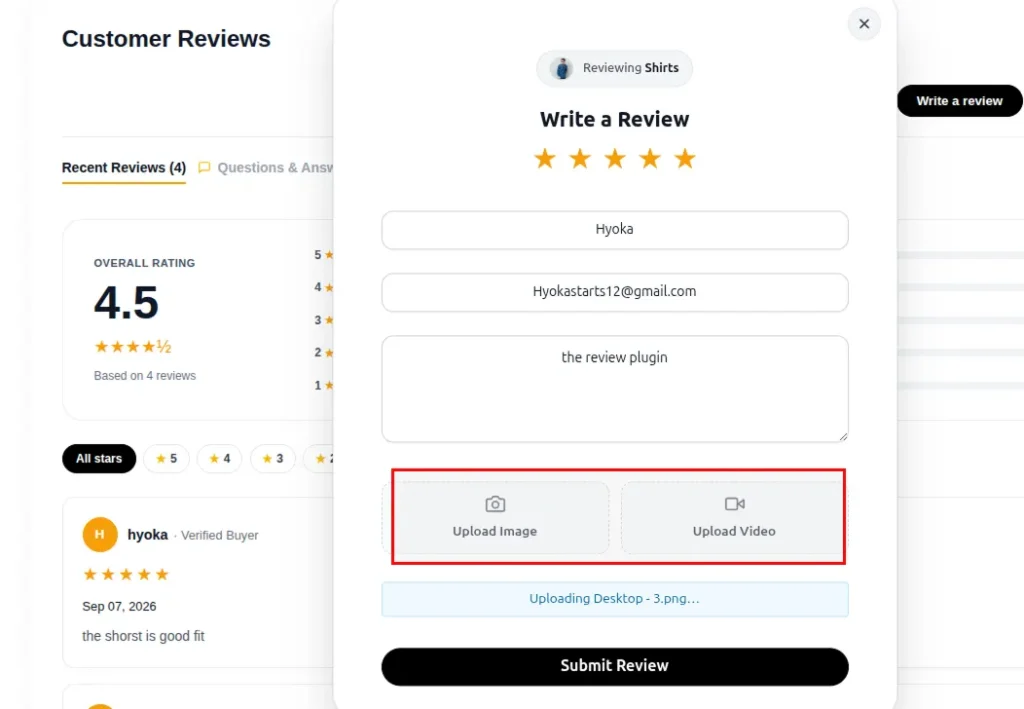
2. Open the review submission modal, attach a photo and video file, and submit.
3. Verify that media thumbnails render cleanly in the customer review card and lightbox popup.
Need Help?
Email: support@ysinnovations.com
Documentation: https://docs.ysplugins.com/hyoka