
License Key Validation
Learn how to validate the license key and also manage the sites associated with the license
Contents:
- How to get the license keys?
- How to Validate the License Key?
- Managing Sites for your License Key
How to get the license keys?
There are two ways:
1. You can view the license key in the “Purchase confirmation email” that we send to you immediately after you purchase the Hyoka Product Reviews plugin..
2. Please login to My Account page and click on the “View Licenses” link.
How to Validate the License Key?
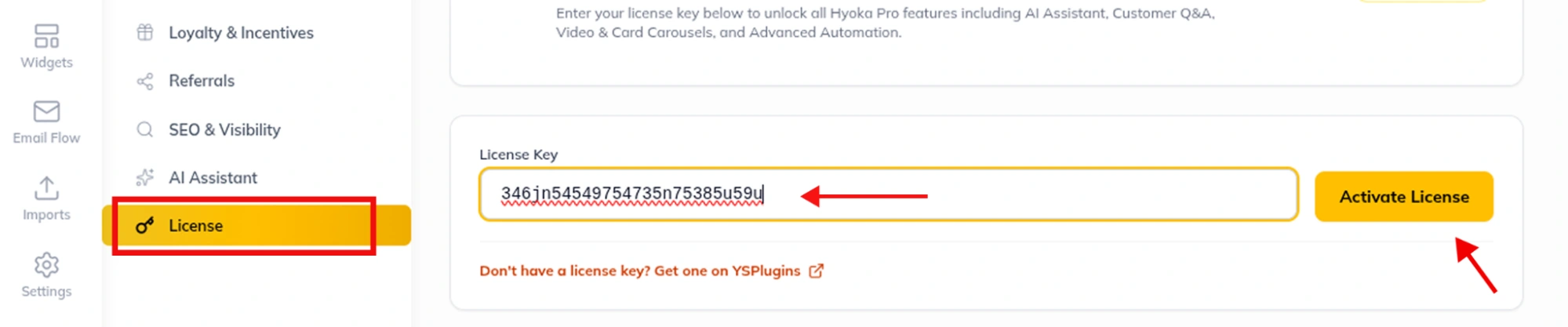
Once you have obtained the license key, please go to your WordPress dashboard -> Hyoka -> Settings -> License section.
Enter your license key and click “Activate license” button.
Managing Sites for your License Key
Hyoka Product Reviews comes in three different plans – Starter, Professional & Agency. The usage of the license (number of sites) is based on the plan you have purchased.
- Starter – 1 website
- Professional – 3 websites
- Agency – 10 websites
When you activate the license, we automatically add the site for you and associate it with your license.
In case, you want to add / remove the sites manually for your license key, follow the instructions below to do so:
1. Login to My Account page.
2. Go to My Account menu and click on the “View Licenses” link.
3. In the following screen, click on the “Manage Sites” link.
4. In the next screen, you can add / remove (deactivate) the sites.
Still could not validate the key?
Please submit a support@ysinnovations.com We will assist you with the validation.