
An exhaustive, step-by-step operational manual for managing customer reviews, configuring OpenAI APIkeys, enabling AI review summaries, setting ML spam thresholds, and drafting one-click AI replies.
This master guide provides a complete technical walkthrough of every moderation filter, bulk action, OpenAI
API key configuration setting, AI feature toggle, and reply tone option available in Hyoka.
Section 1: Navigating the Product Reviews Moderation Panel
All review moderation, status filtering, and customer reply management are centralized under the Hyoka Reviews dashboard.
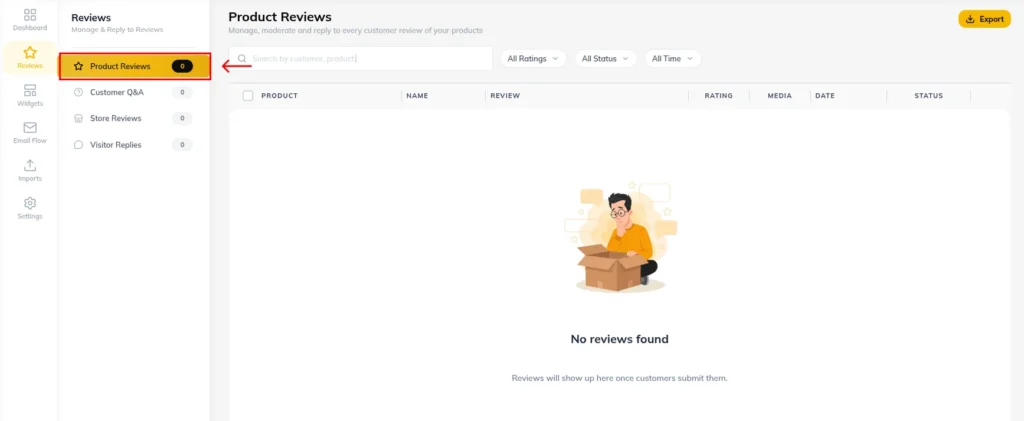
Step 1.1: Accessing Product Reviews Moderation
1. Log into your WordPress Admin Dashboard.
2. Click Hyoka in the left WordPress menu.
3. In the Hyoka primary navigation sidebar, click Reviews, then select Product Reviews
Step 1.2: Understanding Status Tabs
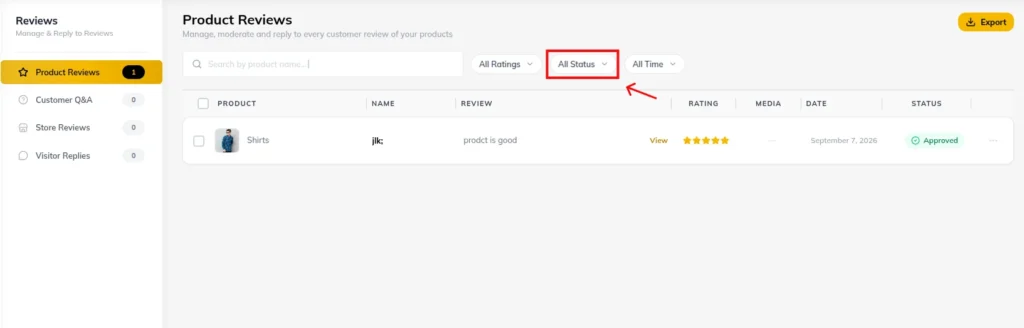
The top moderation bar provides 5 status tabs to manage review workflows:
All Reviews: Complete catalog of all submitted customer feedback.
Pending: New submissions awaiting store administrator approval.
Approved: Live reviews currently visible on storefront product pages.
Spam: Suspicious reviews flagged automatically by ML rules or keyword filters.
Trash: Deleted reviews retained for 30 days before permanent removal.
Section 2: Moderation Operations, Bulk Actions, Filtering & CSV Exports
Hyoka gives store owners powerful filtering tools to moderate thousands of reviews efficiently.
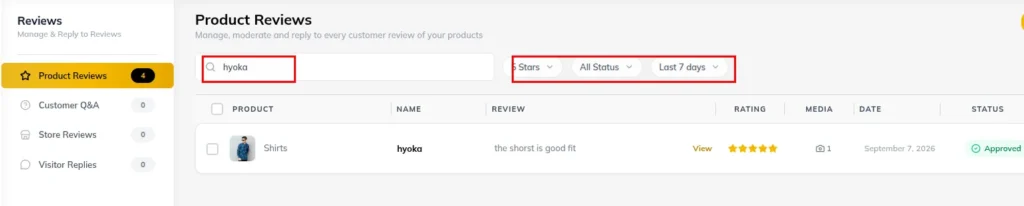
Step 2.1: Filtering & Searching Reviews
1. Search Query Bar: Type a reviewer name, email, review title, order ID, or keyword in the typewriter search bar.
2. Star Rating Filter: Filter by exact rating (5 Stars, 4 Stars, 3 Stars, 2 Stars, 1 Star).
3. Sort Order Filter: Sort by Newest First, Oldest First, Highest Rating, or Lowest Rating.
Step 2.2: Single Review Action Controls
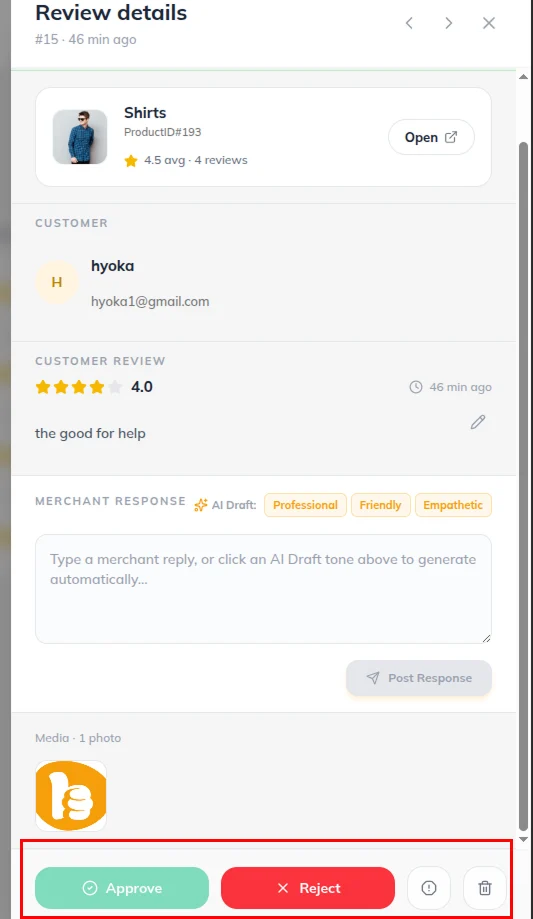
On any review card in the moderation table:
Approve / Unapprove: Click Approve (green checkmark) to publish a review live, or Unapprove to return it to pending status.
Reply: Click Reply (speech bubble icon) to draft an official store response.
Mark Spam: Click Spam (shield icon) to remove the review from public view and train the spam filter.
Delete: Click Trash (trash icon) to delete the review.
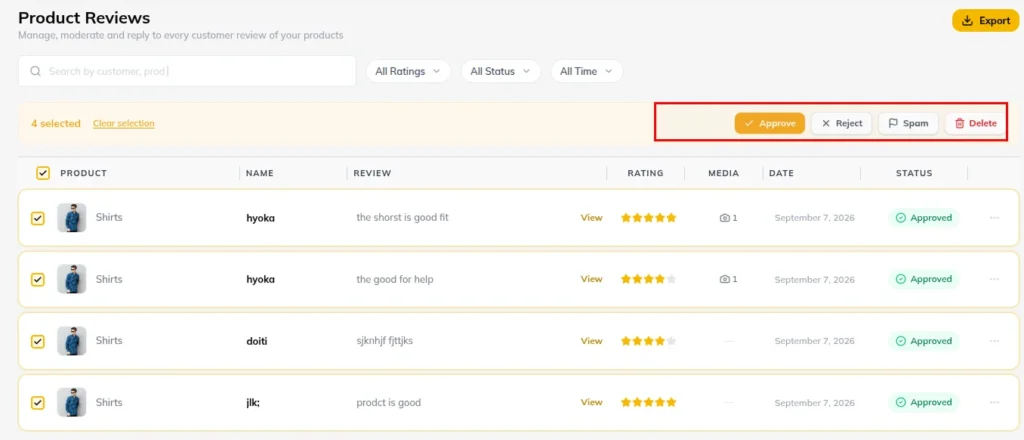
Step 2.3: Performing Bulk Actions
1. Select multiple review checkboxes or check Select All.
2. From the Bulk Actions bar, select your desired action:
Bulk Approve: Instantly publish all selected reviews.
Bulk Reject: Move selected reviews to pending/rejected status.
Bulk Spam: Flag selected entries as spam.
Bulk Delete: Move selected items to trash.
3. Click Apply Bulk Action.
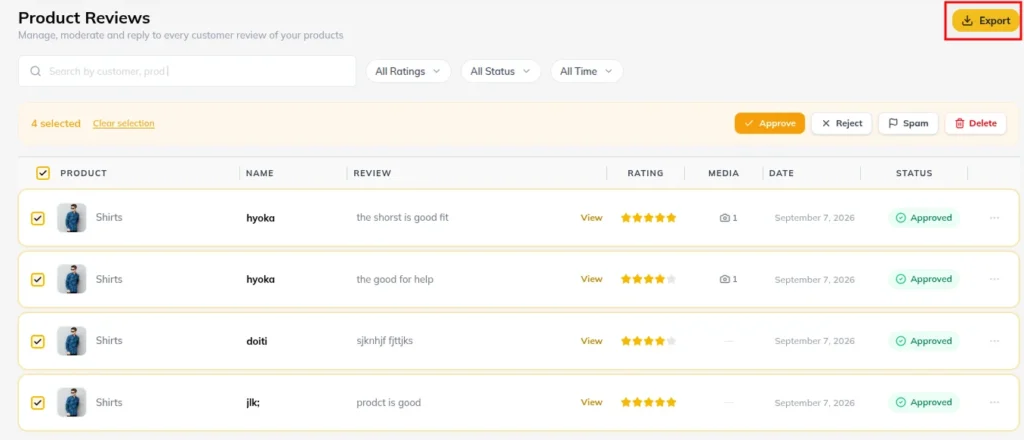
Step 2.4: Exporting Moderated Reviews
1. Filter reviews by status or select specific checkboxes.
2. Click Export in the top right corner of the moderation panel.
3. Hyoka exports a clean CSV file containing reviewer names, emails, star ratings, review titles, full text body, verification status, and timestamps.
Section 3: Connecting OpenAI API Key & Managing Request Quotas
Hyoka PRO includes a native AI Assistant powered by OpenAI. Connecting your API key unlocks automatic review summaries, sentiment tagging, spam classification, and AI reply drafting.
Step 3.1: Navigating to AI Assistant Settings
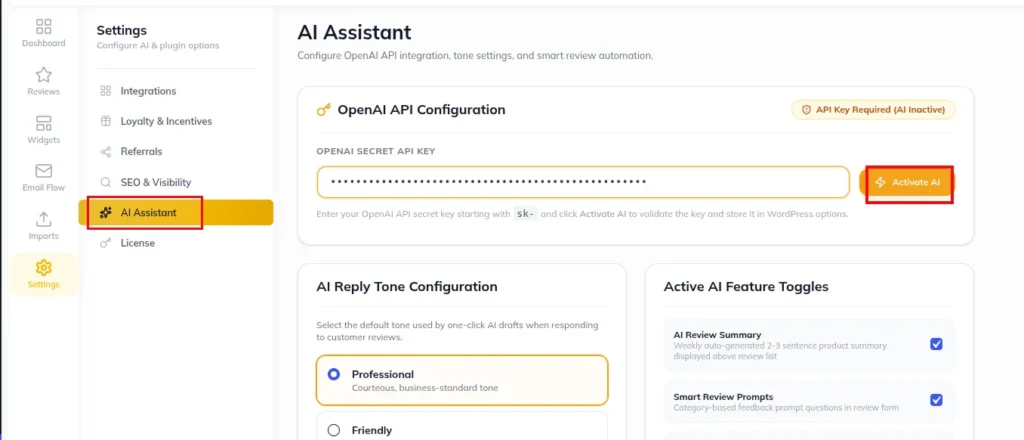
1. In the Hyoka sidebar, click Settings.
2. Select the AI Assistant sub-tab
Step 3.2: Entering & Activating Secret API Key
1. Locate the OpenAI API Configuration section.
2. Enter your OpenAI secret key starting with sk- (e.g. sk-proj-12345… ).
3. Click Activate AI.
4. Validation Process: Hyoka sends an immediate validation ping to OpenAI’s models API. Upon success, a green status badge displays: “API Key Connected (sk-…1234)”.
Step 3.3: Managing AI Quotas & Transient Caching
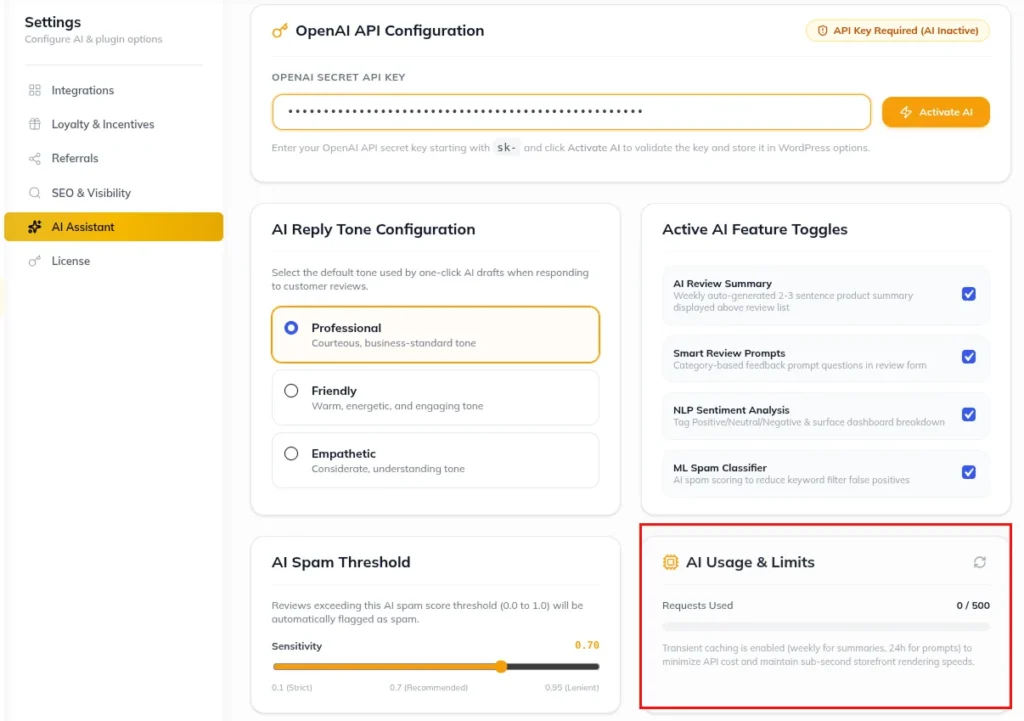
1. View the AI Usage & Limits card.
2. Track total API calls used against your monthly quota (e.g. 124 / 500 requests used ).
3. Performance Optimization: Hyoka uses transient caching (summaries cached weekly, prompts cached 24h) so storefront page loads remain sub-second while API costs stay minimal.
Section 4: Enabling AI Review Summarizer & Highlights on Storefront
The AI Review Summarizer synthesizes dozens of customer reviews into a concise 2-3 sentence highlight box with green highlight pills placed directly above the review list on product pages.
Step 4.1: Enabling the AI Summary Toggle
1. On the AI Assistant tab, locate Active AI Feature Toggles
.
2. Check AI Review Summary (Auto-generated product summary displayed above review list).
3. Settings save automatically via instant AJAX.
Step 4.2: How AI Summaries Function on Storefront
1. When a shopper visits a product page with reviews, Hyoka checks for a valid weekly summary transient
2. If expired or missing, AI analyzes up to 20 recent approved reviews and generates:
Summary Text: E.g., “Customers overwhelmingly praise this product for exceptional build
quality, comfortable fit, and fast shipping.”
Positive Highlight Badges: E.g., High Quality , Fast Delivery , Great Value .
3. The AI Summary renders in a clean blue/emerald highlight card above the product review list.
Section 5: AI Smart Prompts, NLP Sentiment Analysis & ML Spam Classifier
Hyoka uses machine learning and natural language processing to enhance review collection quality and security.
Step 5.1: Category-Based AI Smart Prompts
1. Toggle Smart Review Prompts to ON.
2. How It Works: When a customer opens the review submission modal, Hyoka detects the product category and generates 3 context-aware prompt questions (e.g. for Apparel: “How was the sizing and fit?”, “How soft is the fabric feel?”, “How did it hold up after washing?”).
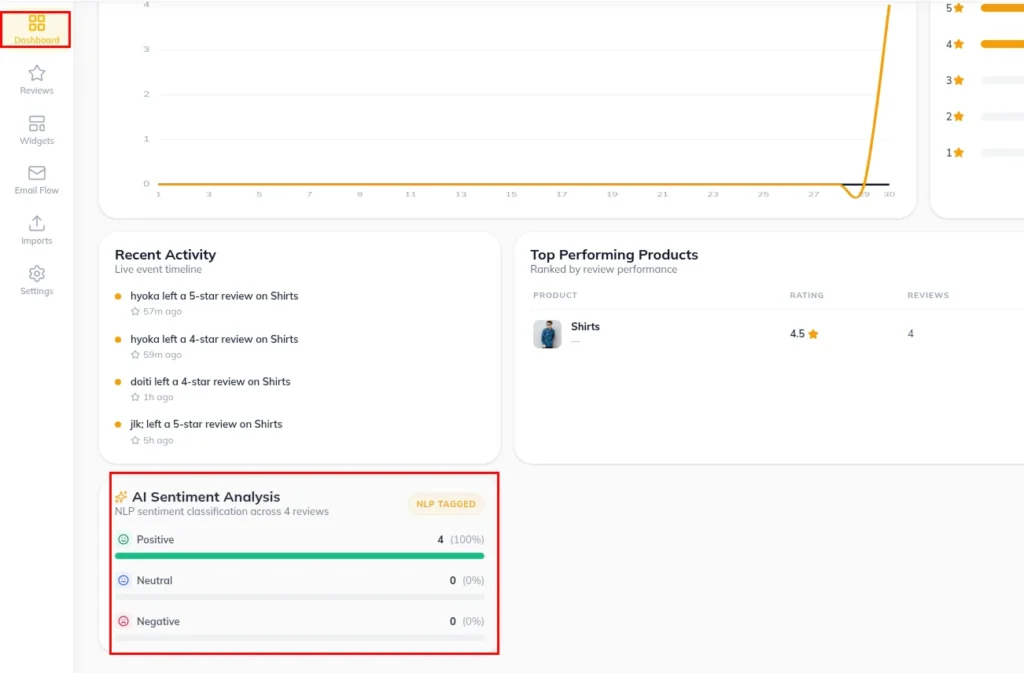
Step 5.2: NLP Sentiment Analysis
1. Once the AI key entered NLP Sentiment Analysis to ON.
2. Hyoka scores every submitted review as Positive, Neutral, or Negative with a confidence score (0.0 to 1.0).
3. View storewide sentiment ratios under Hyoka → Dashboard on the Sentiment Breakdown Card.
Section 6: One-Click AI Reply Generator & Tone Customization
Responding to customer reviews increases customer retention. Hyoka’s One-Click AI Reply Generator drafts polite, customized merchant responses in seconds.
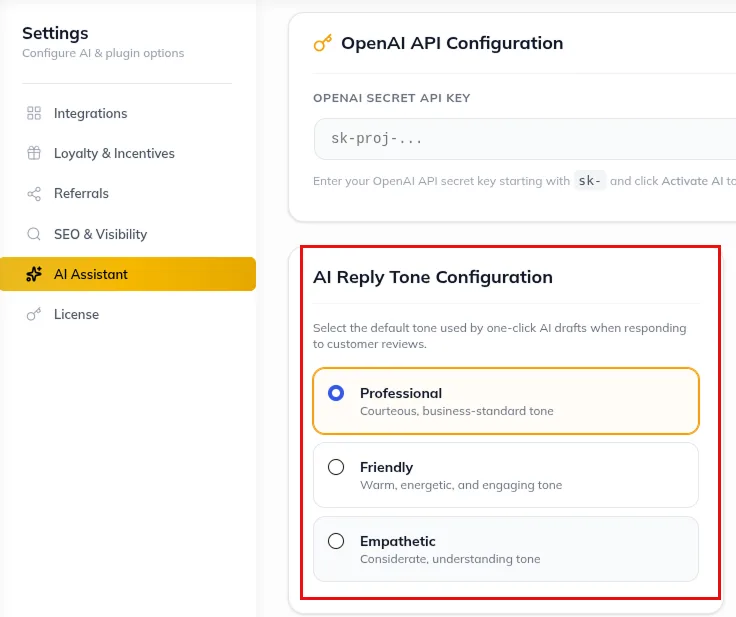
Step 6.1: Selecting Default AI Reply Tone
1. Under AI Assistant Settings, locate AI Reply Tone Configuration.
2. Select your brand tone preference:
Professional: Courteous, business-standard tone (e.g. “Thank you for your feedback. We
appreciate your patronage.”).
Friendly: Warm, energetic, engaging tone (e.g. “Thanks so much for the love! We’re thrilled you
enjoy it!”).
Empathetic: Considerate, understanding tone (e.g. “We sincerely appreciate your honesty and
apologize for any inconvenience.”).
Step 6.2: Generating & Publishing One-Click AI Replies
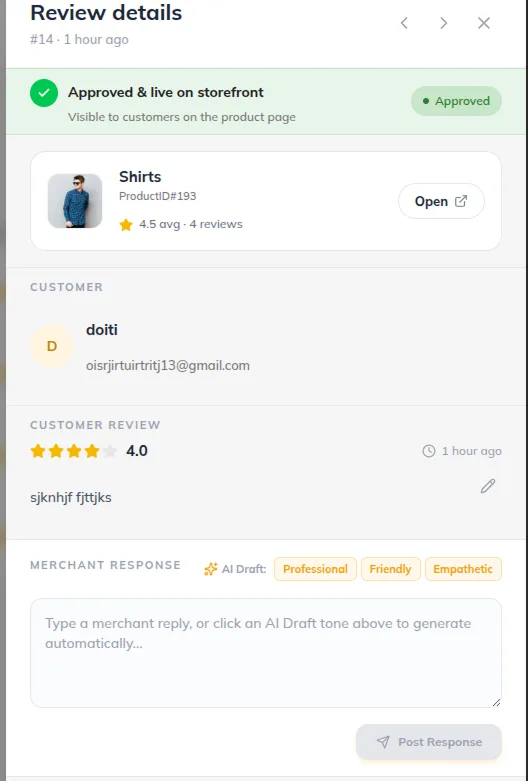
1. Open Hyoka → Reviews → Product Reviews.
2. Click Reply on any customer review card.
3. In the reply modal, click Generate AI Reply.
4. Hyoka sends the review text and star score to OpenAI and generates a tailored response.
5. Review the AI draft, make any desired manual tweaks, and click Submit Reply.
Need Help?
Email Support:support@ysinnovations.com
Developer Documentation: https://docs.ysplugins.com/hyoka