Learn how to install and activate the Pickpair plugin on your WordPress site.
This guide assumes that you have already purchased the Pickpair PRO plugin and downloaded the plugin ZIP file from our website.
Haven’t purchased Pickpair PRO yet?
👉 Get Pickpair PRO
Downloading the Pickpair Plugin
There are two ways to download the Pickpair plugin:
- Purchase Confirmation Email
After your purchase, you will receive an email containing the download link for the latest version of the plugin and your license key. - Pickpair Account Page
Visit the My Account page and log in with your registered email and password. From there, you can:- Download the latest version of the plugin
- Access your license key
Installation & Activation Steps
Step 1: Log in to your WordPress Admin Dashboard.
Step 2: Navigate to Plugins → Add Plugin.
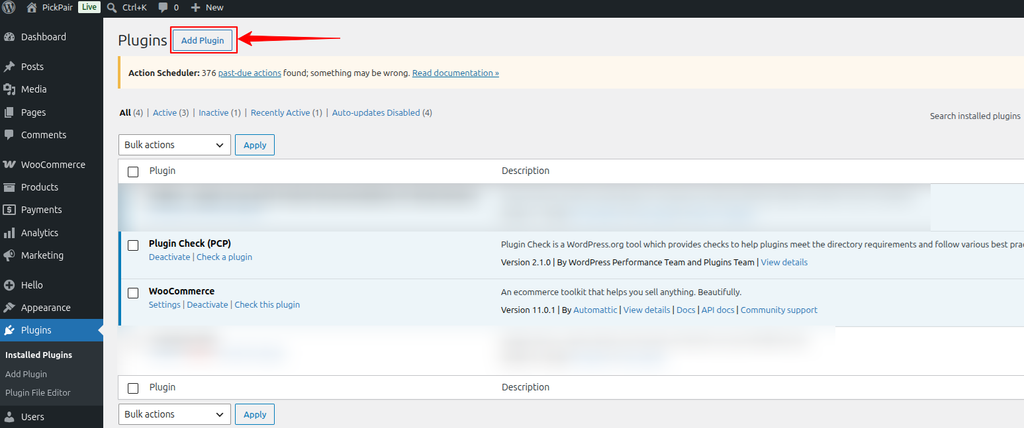
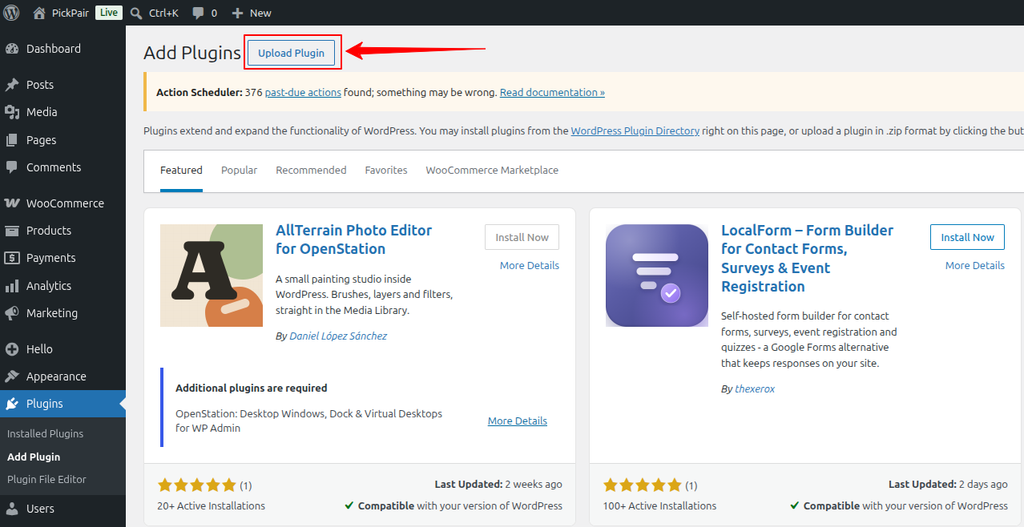
Step 3: Click the Upload Plugin button at the top of the page.
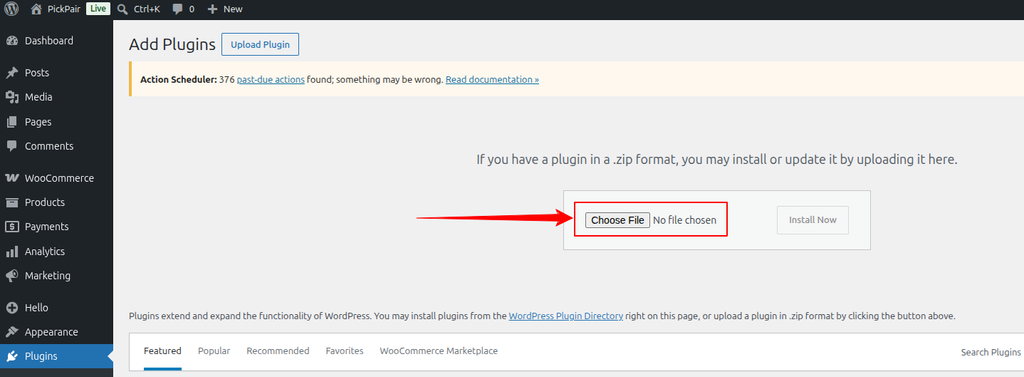
Step 4: Click Choose File and select the pickpair.zip file.
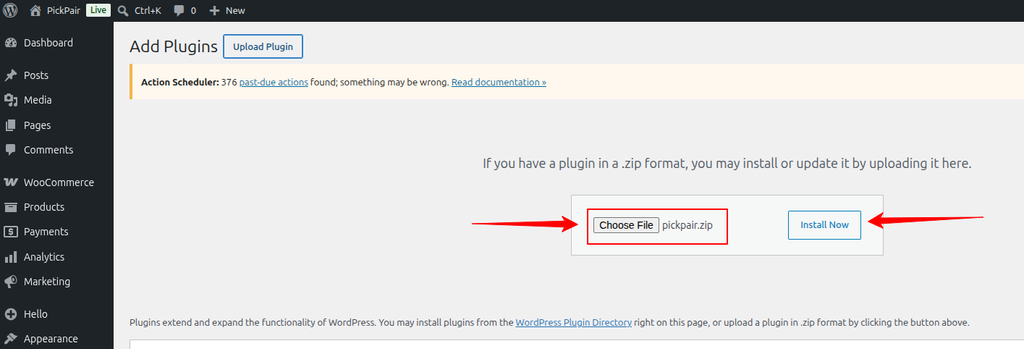
Step 5: After uploading the zip click Install Now.
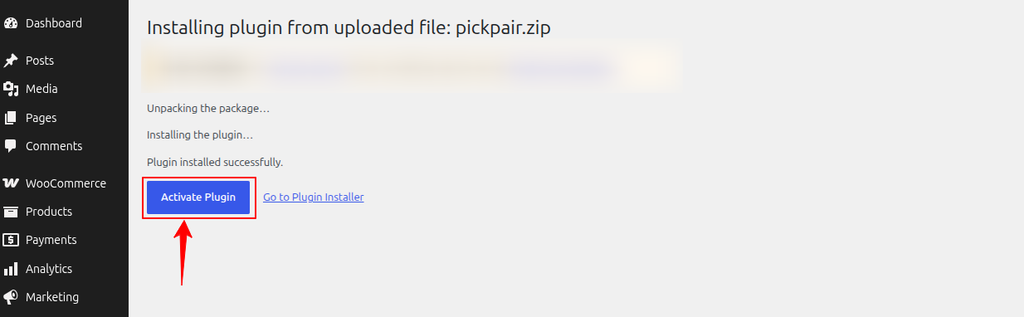
Step 6: After the installation is complete, click Activate Plugin.
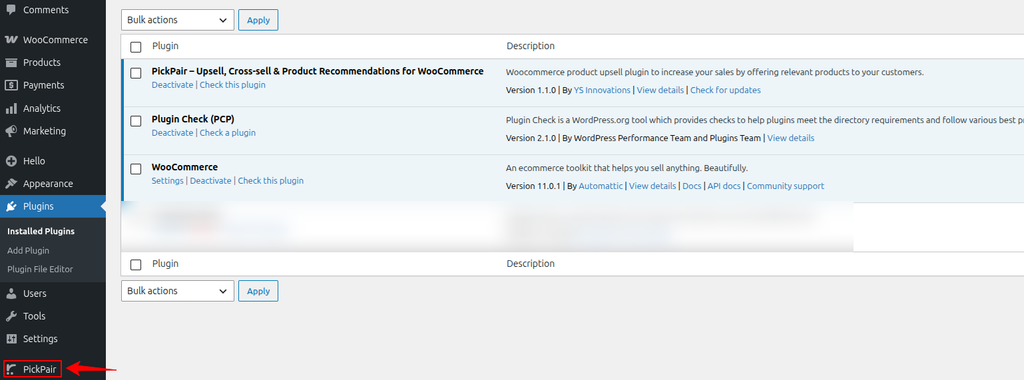
Step 7: Once activated, click PickPair in the WordPress Admin sidebar to open the plugin dashboard and begin setting up your upsell and cross-sell campaigns.
Activate Your License
To unlock all PRO features:
- Go to Pickpair → Settings → License
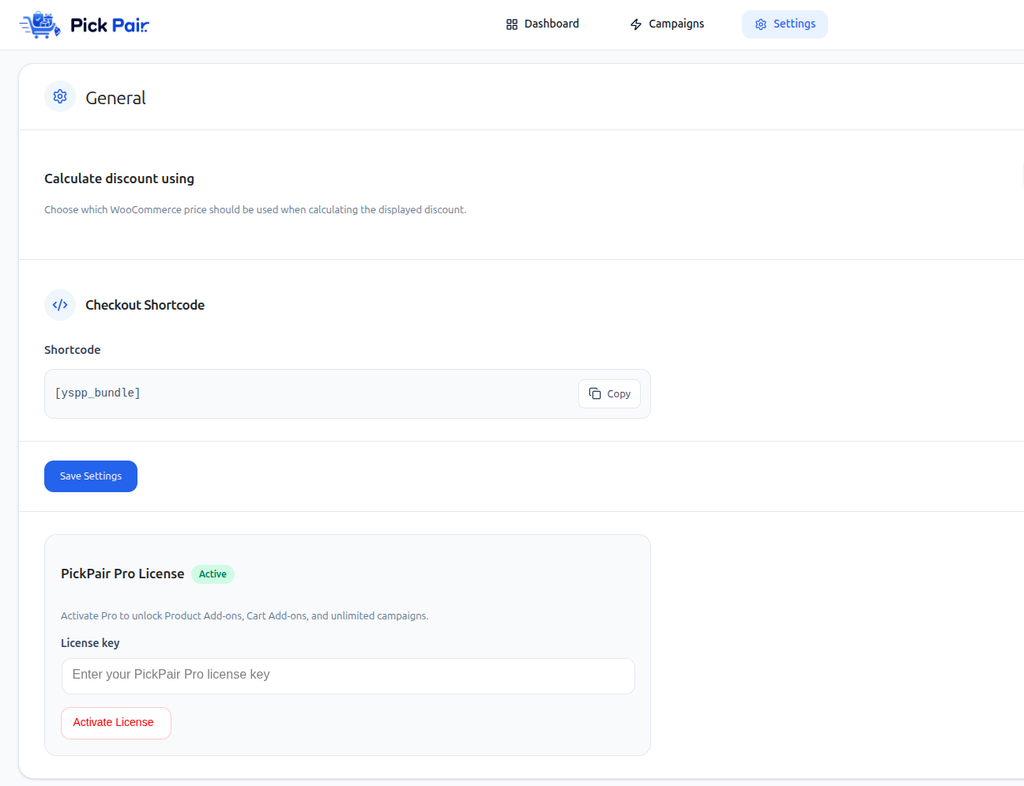
- Enter your license key
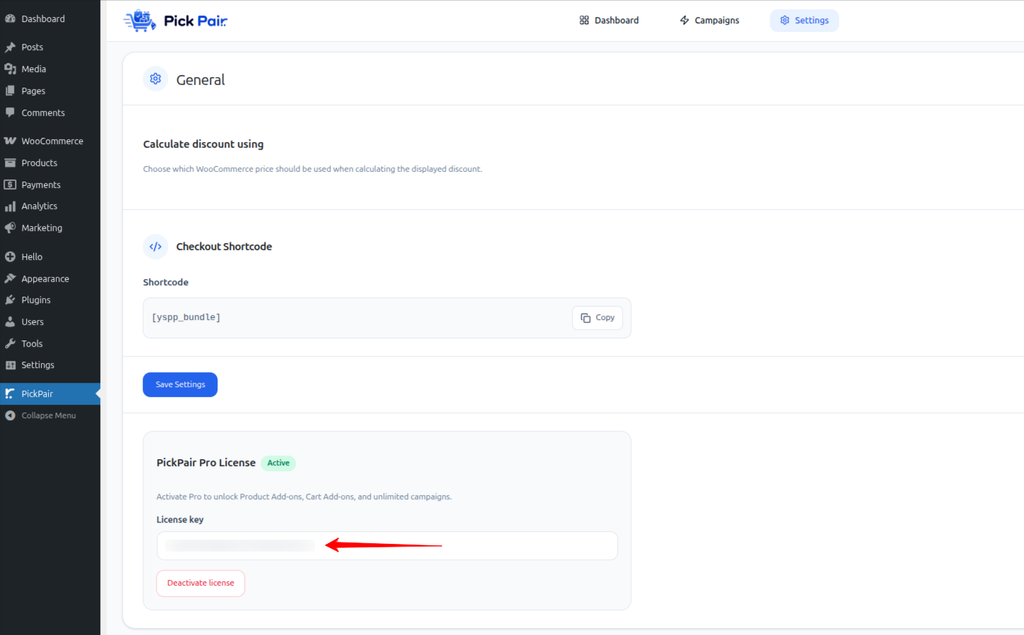
- Click Save Changes
Now you’re all set to start creating powerful popups and lead forms with YS Lead Gen!Need help or have questions?
Reach out to us at support@yspickpair.com
Plugin Updates
PickPair is actively developed and regularly updated with bug fixes, performance improvements, and new features to help you create better upsells, bundles, and product offers.
Keeping PickPair updated ensures you have the latest features, improvements, and compatibility updates for WordPress and WooCommerce.
Updating PickPair to the Latest Version
There are two ways to update PickPair.
Updating via the WordPress Dashboard (Recommended)
- Go to WordPress Dashboard → Plugins → Installed Plugins.
- Search for PickPair.
- When a new version is available, click Update Now.
The update link only appears when a newer version is available. If no notification is shown, you may already be using the latest version.
Not Seeing Update Notifications?
- Ensure your PickPair Pro license is active under PickPair → Settings → License.
- Confirm that you are using the latest available version.
- Check the PickPair changelog for recent releases and improvements.
Manually Updating PickPair
You do not need to delete the existing plugin before updating.
- Log in to your PickPair account and download the latest PickPair ZIP file.
- Go to WordPress Dashboard → Plugins → Add New → Upload Plugin.
- Select the ZIP file you downloaded.
- Click Install Now.
- When WordPress detects the existing plugin, click Replace current with uploaded.
Your existing campaigns, settings, and configuration will remain intact.
Need Help?
Contact the PickPair support team at support@pickpair.com.
Stay updated and keep improving your store’s upsell performance with PickPair.